Chapter 4 · The Verified badge
Earning the Verified badge
Submit the business registration and proof of exports within the last 24 months so ViRFQ can award the Verified mark on your public profile.
Updated: 09/09/2026
Screenshots show the Vietnamese interface; the English interface has exactly the same layout — switch with the VI / EN toggle at the top right.
Only the owner account can do this; staff accounts do not see this section.
The Verified badge tells buyers that ViRFQ has checked you are a real company that really exports. The badge is not part of any plan and cannot be bought — it is granted only after the ViRFQ team reviews your documents by hand. Verified profiles are what buyers filter for first on the Marketplace.
Two conditions
- A valid business registration certificate — submit a scan or photo in the business registration block under Documents in the Business Profile.
- At least one proof of export within the last 24 months — an export customs declaration, a certificate of origin (C/O) or a bill of lading (B/L), for the product category you sell on ViRFQ.
Submit the documents
Bước 1: Condition 1 — business registration: go to Business Profile and scroll to Documents. The top block is Business registration (ĐKKD) verification — choose the file (1) and click Upload (2). This file is seen only by the ViRFQ team and is never shown publicly. The View all verification documents link (3) takes you to the Verification page.
- Do not confuse it with the public documents block right below (catalogue, HACCP/ISO/Halal for buyers to download): files uploaded there are public and do not count as verification documents.
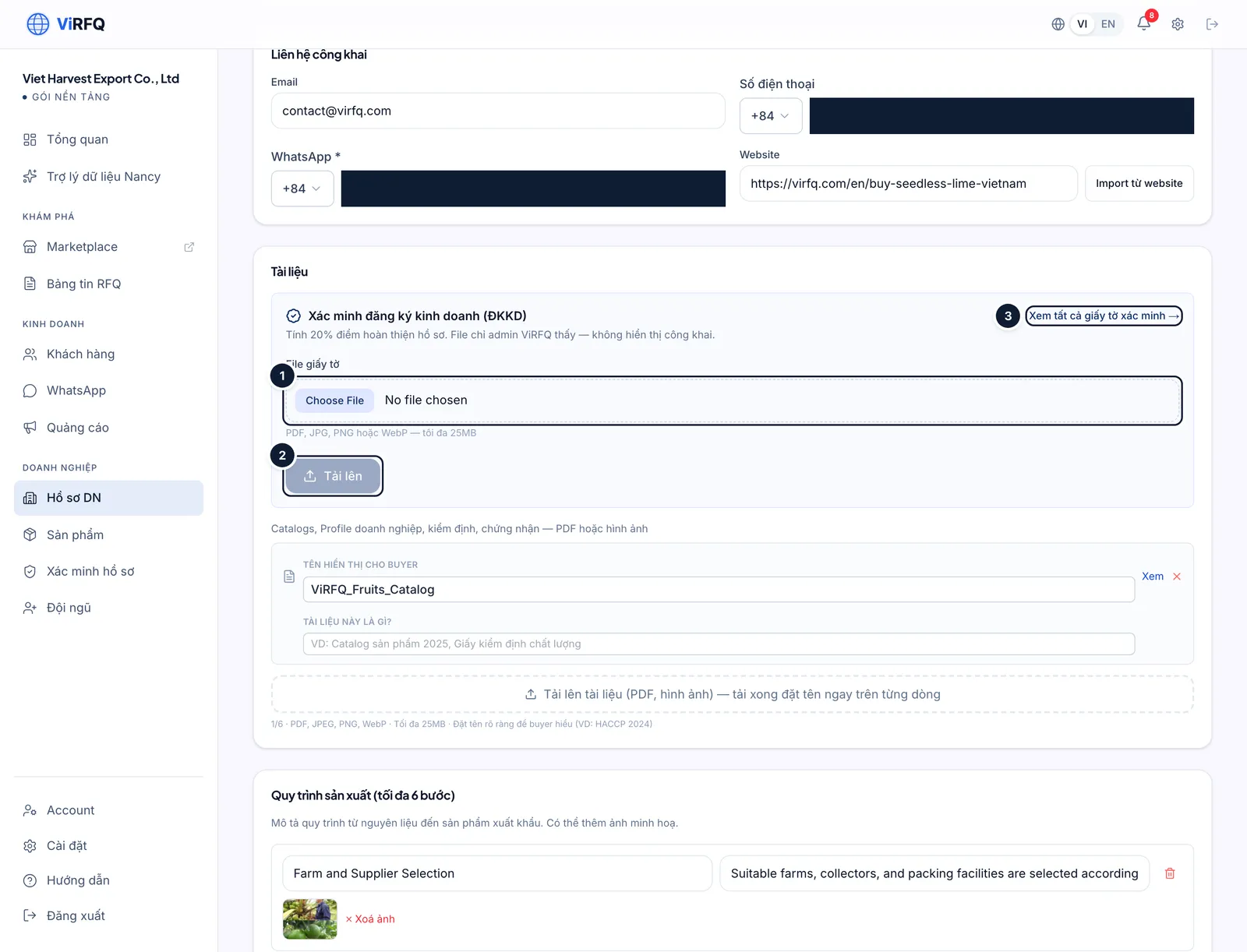
Business registration block (private): (1) choose the file, (2) upload, (3) go to verification. Bước 2: Condition 2 — proof of export: open Verification in the left column. If the business registration is not submitted yet, the Submit in Business Profile link (1) sends you back to the step above. Choose the document type (2), choose the file (3) and click Upload (4). The more documents, the better.
- Accepted files: PDF, JPG, PNG, WebP — up to 25 MB. You may black out buyer names and shipment values before uploading; ViRFQ only needs to see that the export is real, in your category and within 24 months.
- Documents are visible to the ViRFQ team and to you only — never publicly.
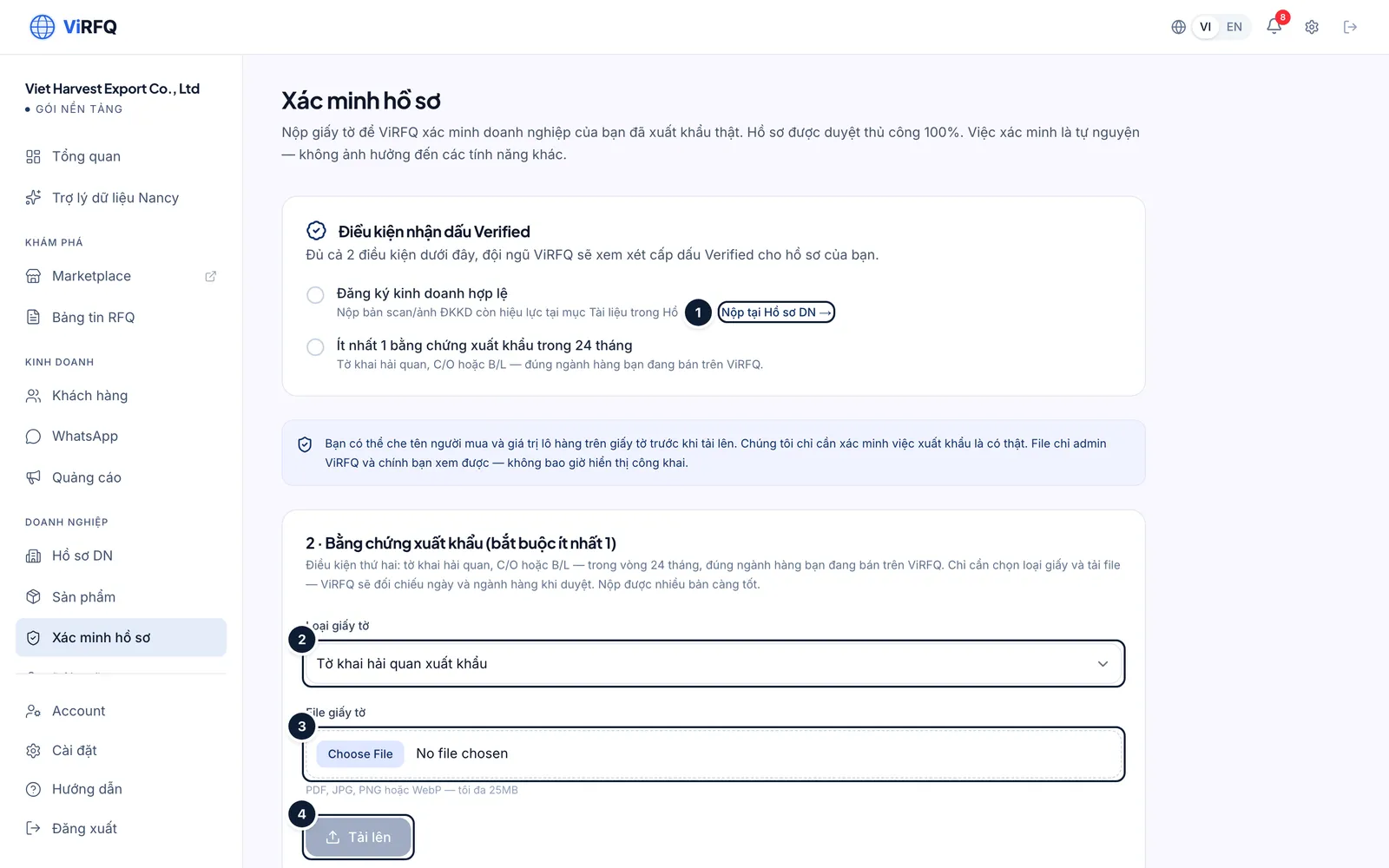
Verification: (1) submit the registration, (2) document type, (3) choose the file, (4) upload. Bước 3: After uploading, the document appears in the list as Pending. The ViRFQ team checks the dates and the category and marks it Approved or Rejected with a reason. Once both conditions are approved, the ViRFQ team grants the badge (one manual step, usually the same day); you receive an email and the badge appears on your profile and product pages.
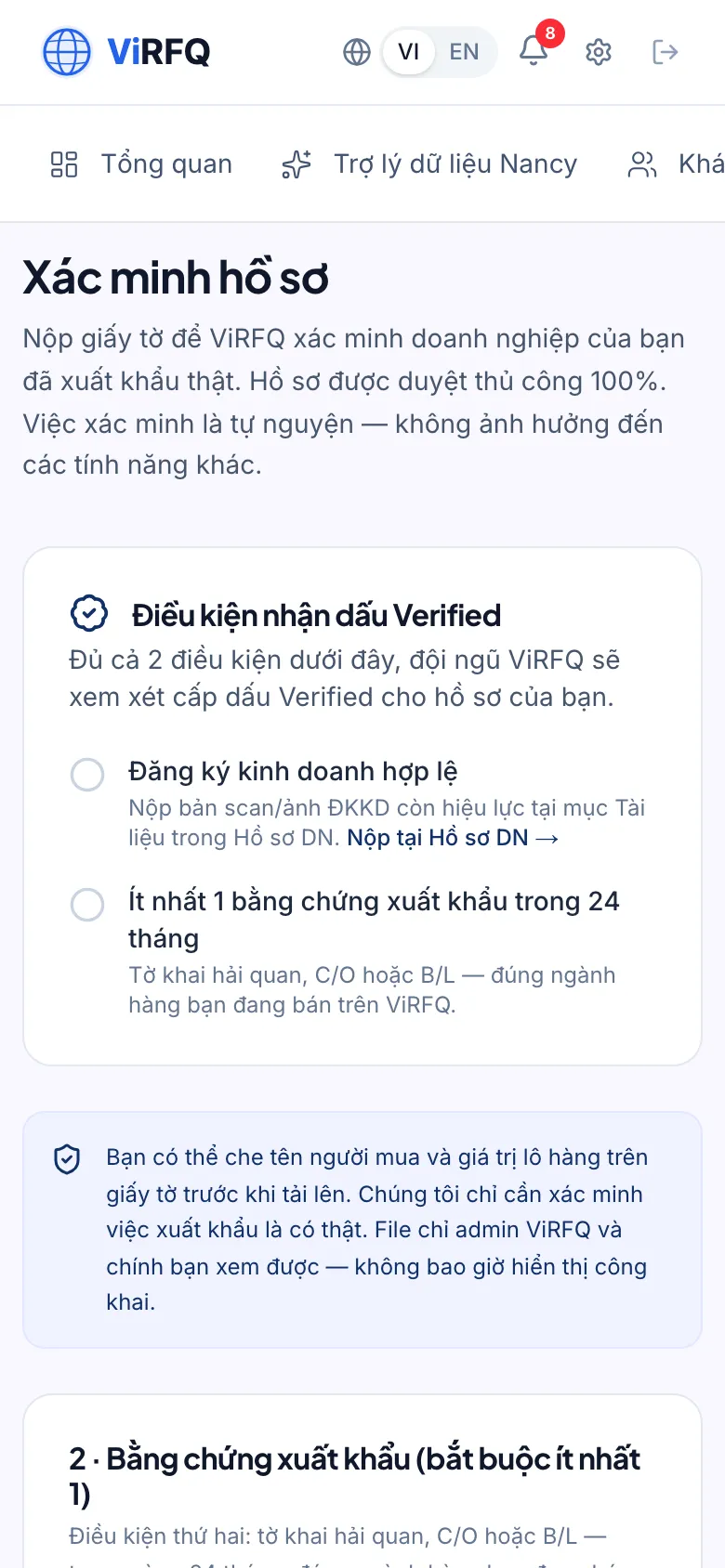
Verification page on a phone
Frequently asked questions
- How long does the review take?
- Usually 1–2 working days after both document types are submitted.
- We are a new company and have not exported yet.
- You can still use every feature; you just do not have the badge yet. After the first shipment, submit the customs declaration to earn it.
- A document was rejected — can I resubmit?
- Yes. Read the reason in the list, upload a better copy (sharp, right category, within 24 months) and submit again; there is no limit on attempts.