Chapter 2 · Business profile
Completing the business profile
Fill in company details, factory photos, trade terms and documents so your public profile shows on the Marketplace and earns buyer trust.
Updated: 09/09/2026
Screenshots show the Vietnamese interface; the English interface has exactly the same layout — switch with the VI / EN toggle at the top right.
Only the owner account can do this; staff accounts do not see this section.
The business profile is the company page overseas buyers see on the Marketplace and when they open your products. The more complete it is — real factory photos, clear trade terms, submitted documents — the easier it is for buyers to get in touch. The WhatsApp assistant also reads this profile to answer buyers on your behalf.
Open the profile and fill it quickly from your website
Bước 1: Go to Business Profile in the left column. At the top are the profile status and the View page button (1) that opens the public page. The Profile completeness bar (2) shows what is still missing — aim for 100%.
- Have a website? Paste the link and click Auto-fill (3): the AI assistant reads the site and fills the introduction, categories, capacity and suggests images. You can still edit every field before saving.
- Images (4): upload a logo, a cover photo and 3–10 factory, growing-area and production-line photos with short captions (for example "Processing workshop", "Gia Lai growing area"). Real photos convince buyers more than any text.
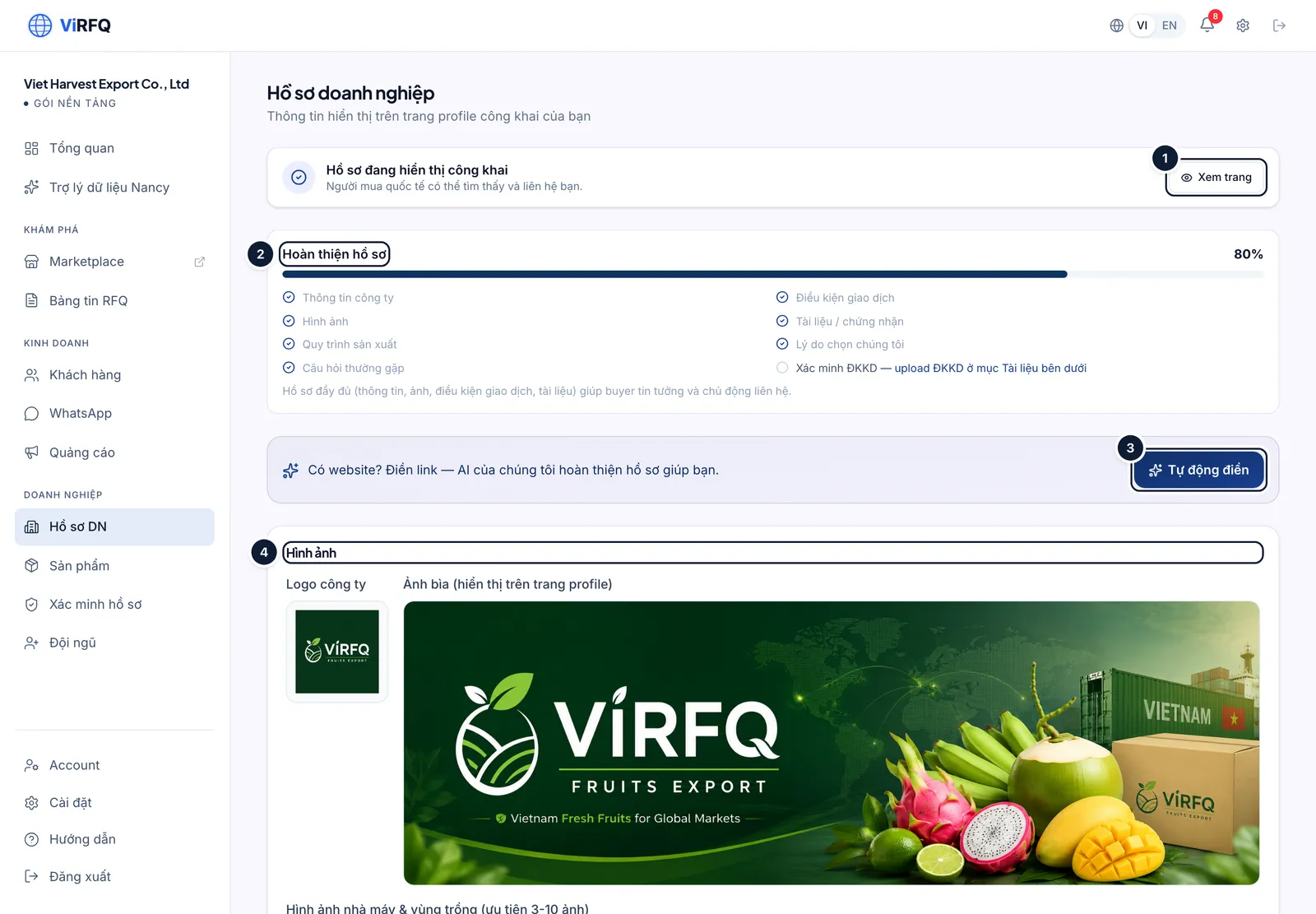
Business profile: (1) view the public page, (2) completeness, (3) auto-fill, (4) images.
Basic information and trade terms
Bước 1: Scroll to Basic information: enter the tax code (1) exactly as on the business registration, choose the business type (2) and tick the product categories (3) you sell.
- Write the Company introduction in 3–5 sentences in Vietnamese: what the company does, for how many years, and its strengths. ViRFQ translates it into English for buyers automatically.
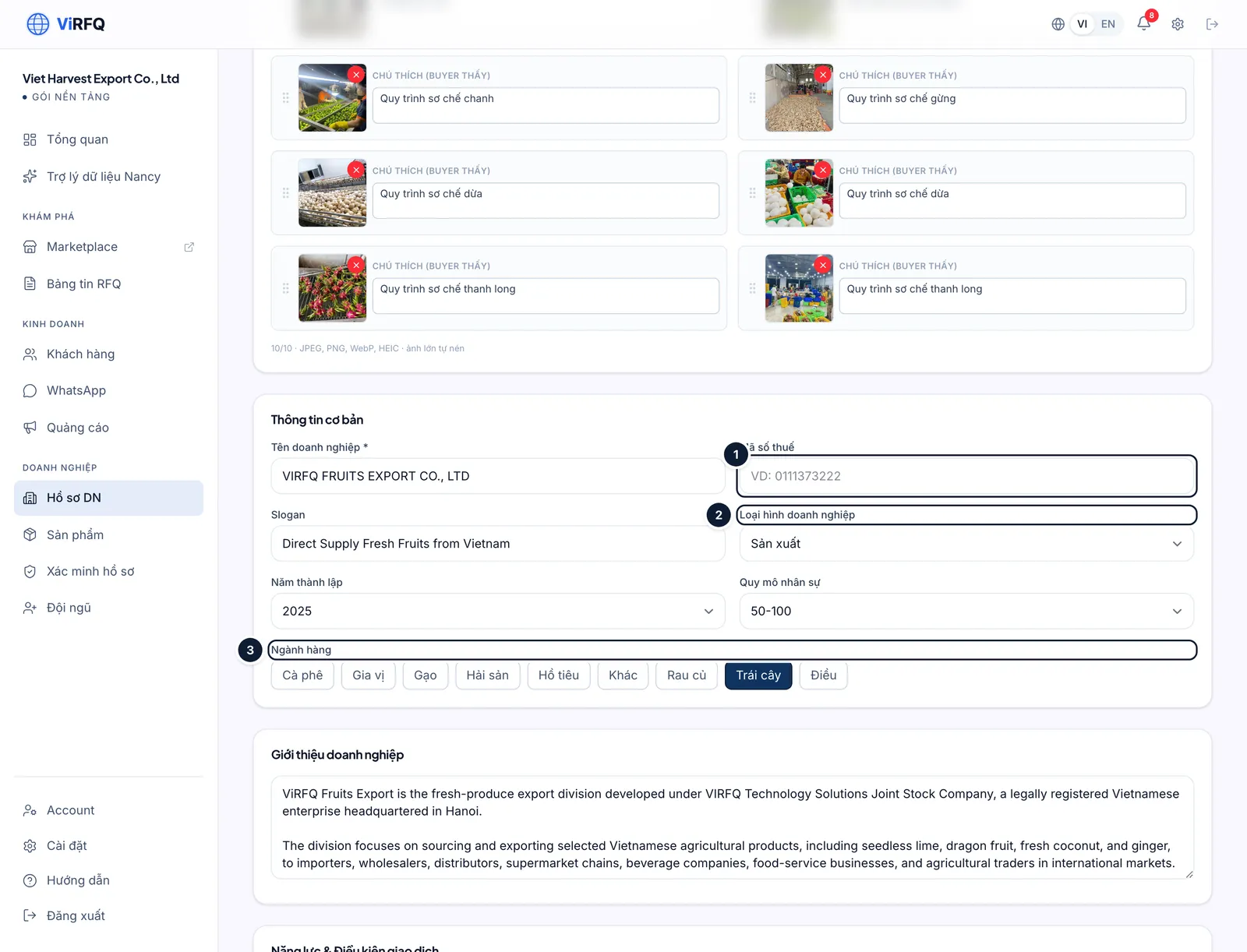
Basic information: (1) tax code, (2) business type, (3) categories. Bước 2: Under Capacity & trade terms: enter the production capacity (1), the export markets (2) separated by commas, then click the payment methods (3: T/T, L/C, CAD) and the Incoterms you support (4: FOB, CIF/CFR, EXW…). Buyers filter suppliers by exactly these fields.
- Public contact: the email, phone and WhatsApp number shown on the public page — use the number your sales team monitors.
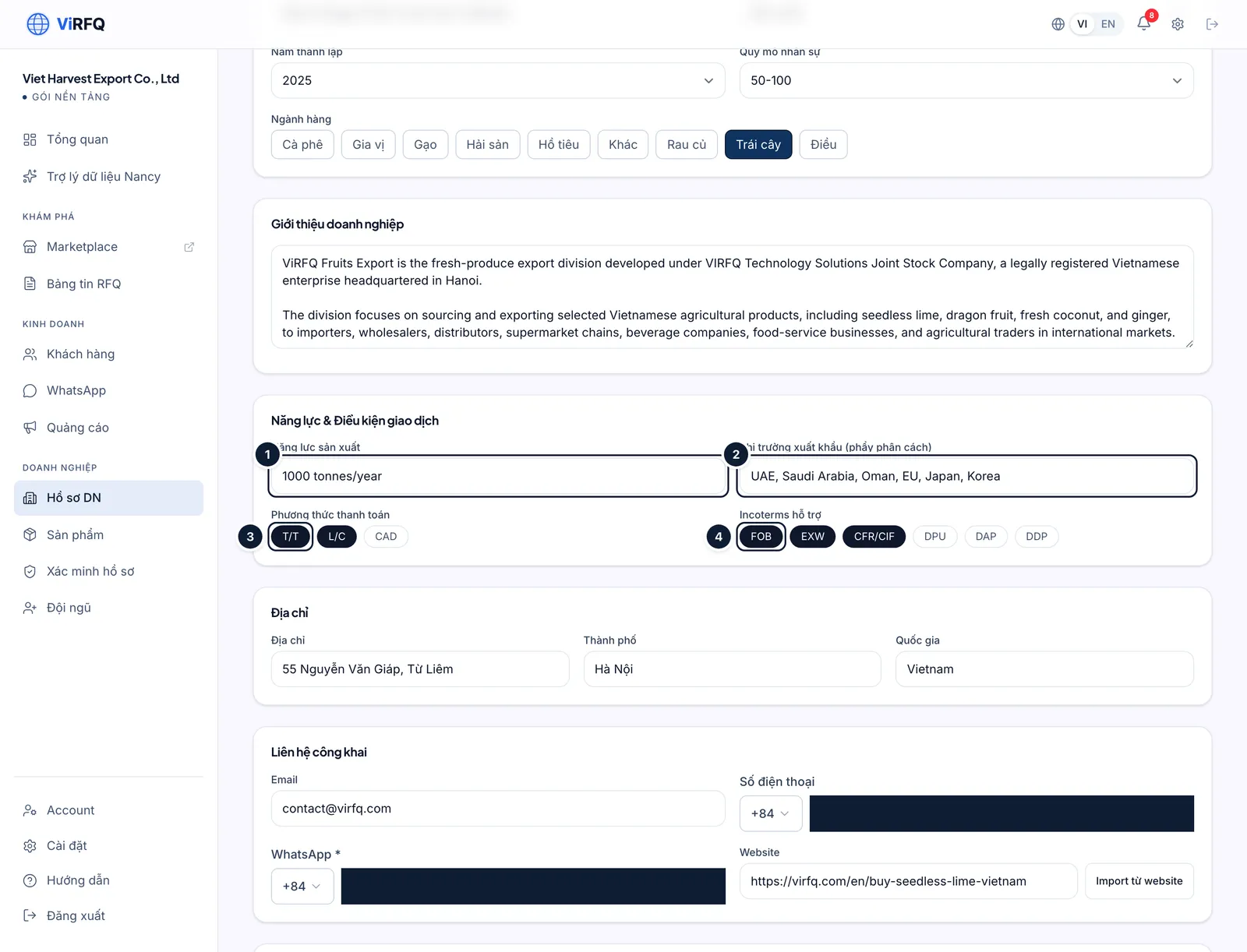
Trade terms: (1) capacity, (2) markets, (3) payment, (4) Incoterms.
Documents
Bước 1: The Documents section has two separate blocks. The lower block is the public documents for buyers (catalogue, HACCP/ISO/Halal certificates): click Upload document (2), then set the display name for buyers (1) on the line that was just uploaded — the file appears on the public page with a download button. The upper block is Business registration (ĐKKD) verification (private, seen only by the ViRFQ team) and is used for the Verified badge — see "The Verified badge" or click View all verification documents (3).
- Accepted files: PDF, JPG, PNG, WebP — up to 25 MB each. A business registration uploaded in the public block does not count as a verification document — submit it in the business registration verification block.
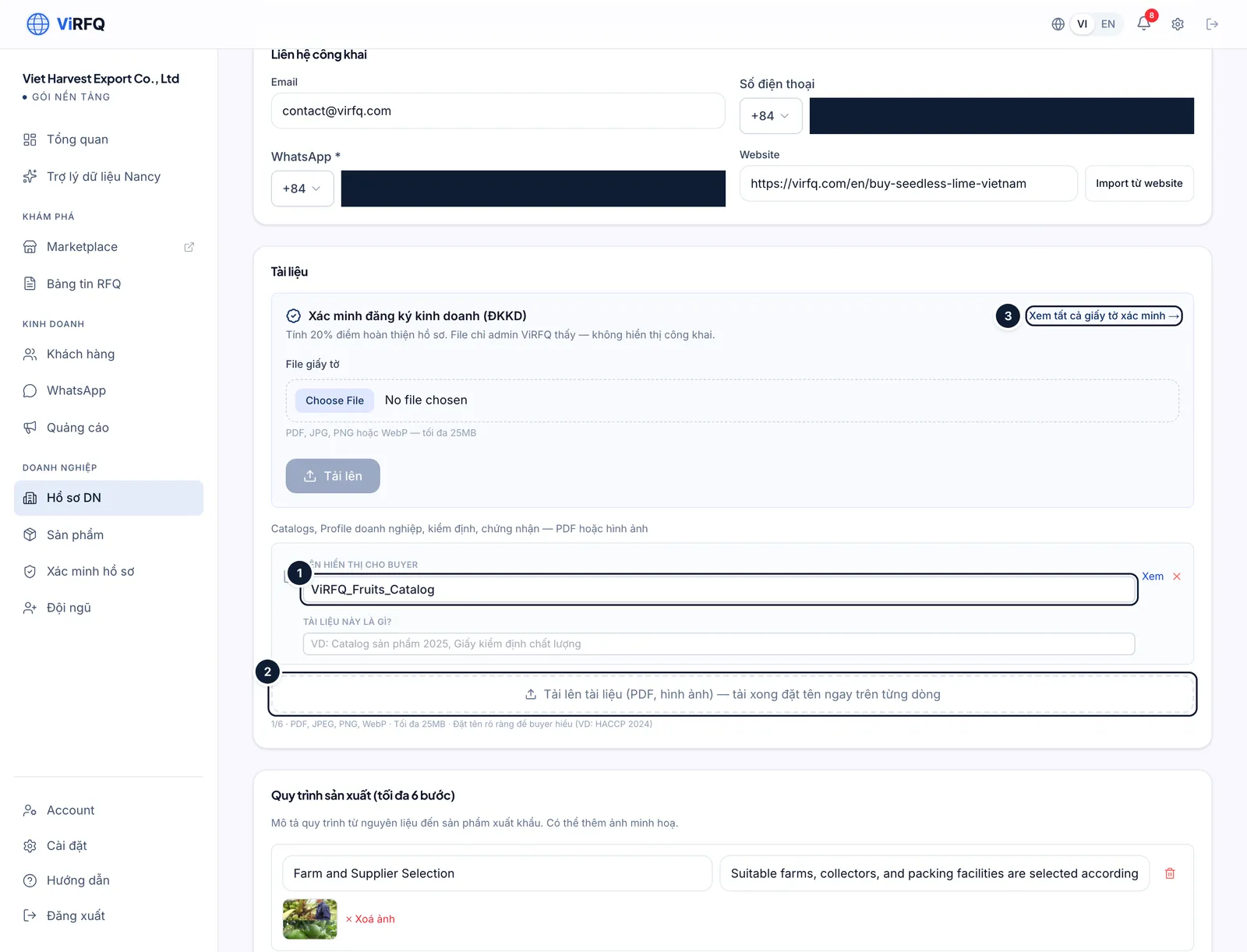
Documents: (1) display name, (2) upload a public document, (3) go to verification.
Process, reasons to choose you, FAQ and save
Bước 1: At the bottom three sections tell the company story: Production process (up to 6 steps), Why choose us (up to 6) and FAQ (up to 10). Click Generate FAQ from existing info (1) to let the AI draft from what you filled in, edit, then click the save button (2). Preview profile (3) opens exactly the page buyers see.
- New profile (draft): the save button reads Publish profile — the WhatsApp number under Public contact is required; after clicking, the profile moves to Pending review. Saving as a draft keeps it a draft and does not queue it for review.
- Published profile (as in the screenshot): the button reads Save changes; every edit goes straight to the public page after saving.
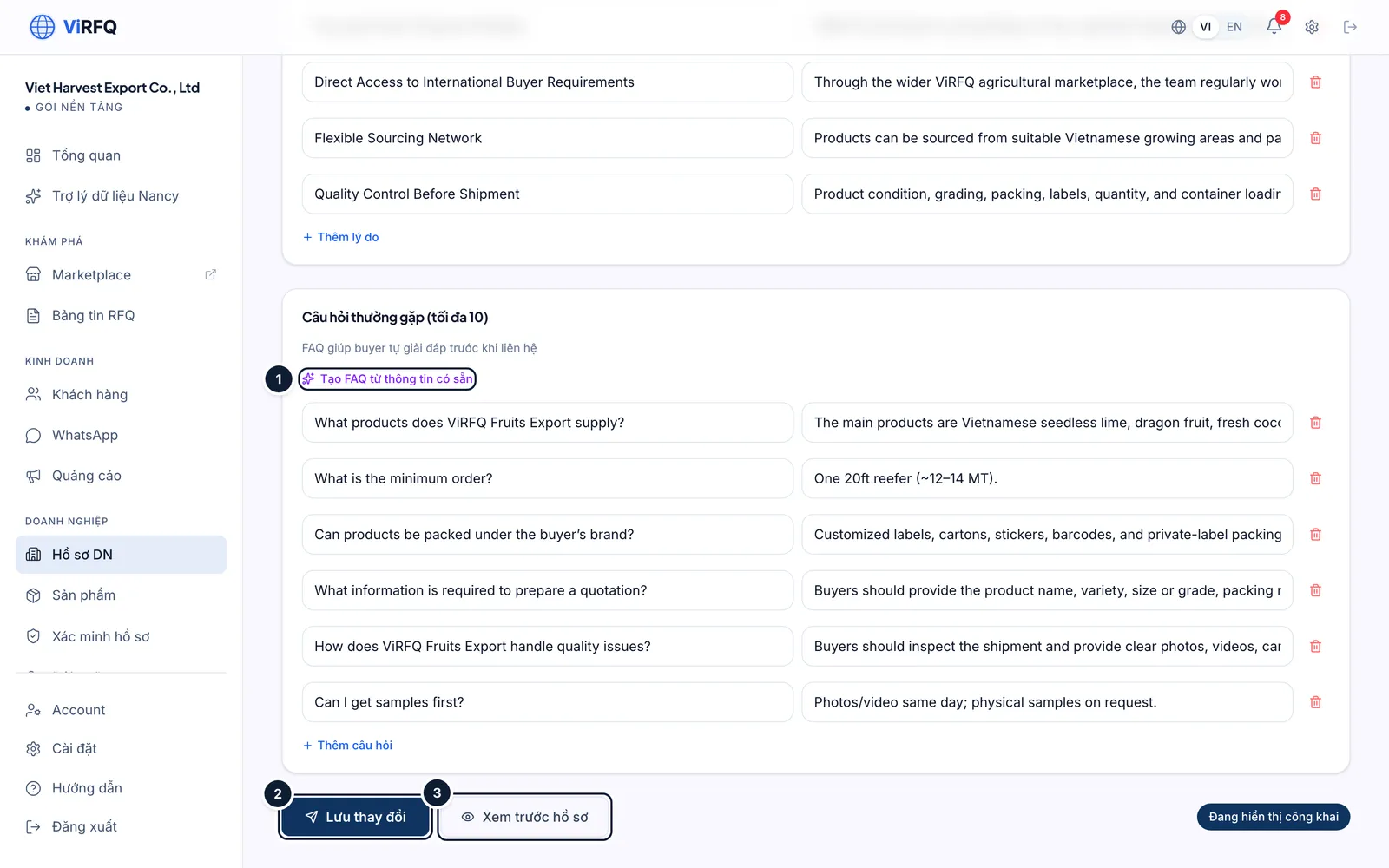
Finish: (1) generate the FAQ, (2) save, (3) preview. Bước 2: The public company page has an address of the form virfq.com/en/supplier/company-name. Send this link to buyers or add it to your email signature — every change saved in Business Profile shows there immediately.
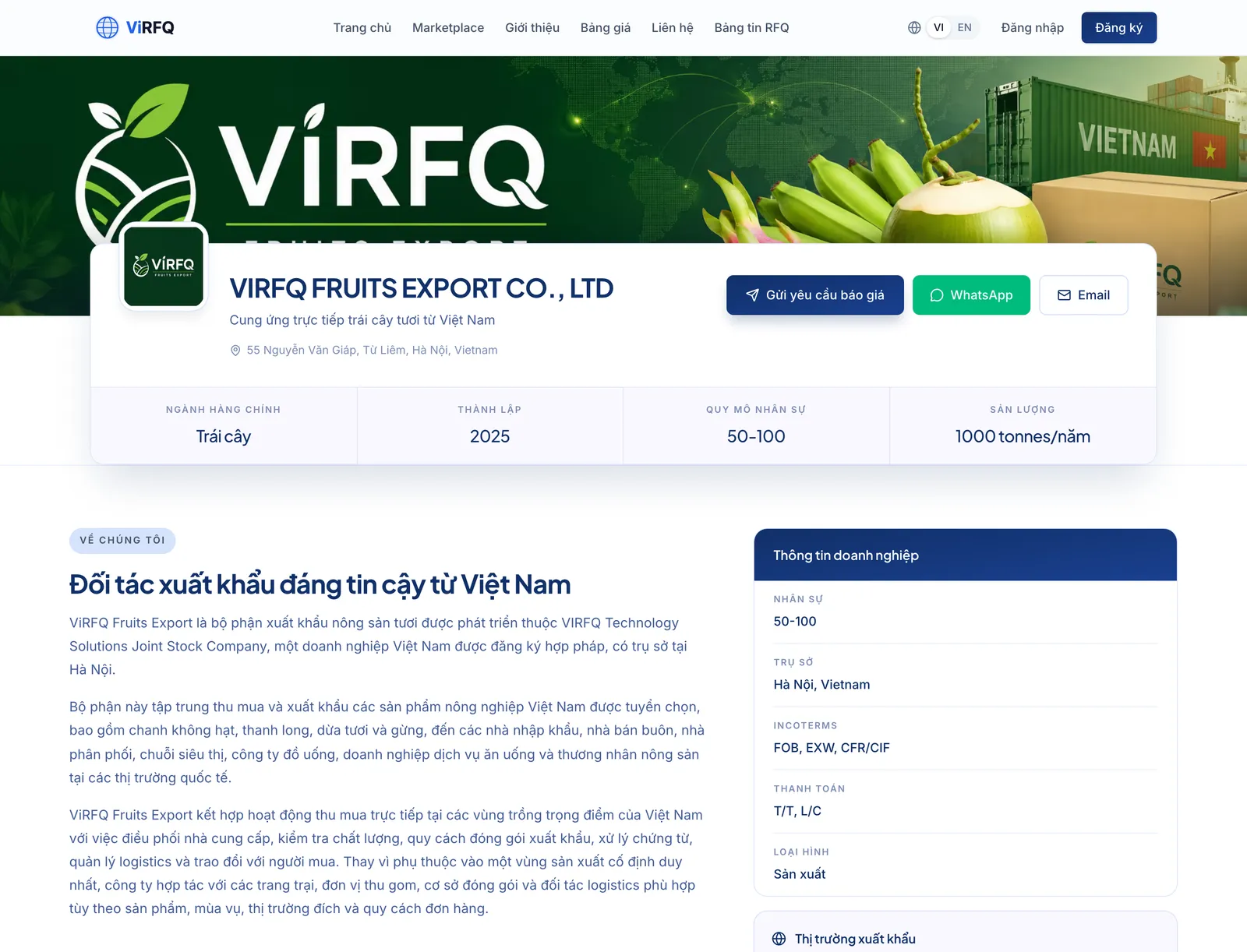
The public page buyers see.
Frequently asked questions
- When does my profile appear on the Marketplace?
- Fill in the name, introduction, categories, at least one photo and the WhatsApp number, then click Publish profile — the profile enters Pending review. The ViRFQ team reviews the content (usually within 1 working day) and switches the public listing on. The status shows at the top of the Business Profile page; a profile only saved as a draft is not reviewed.
- I have several factories or several product categories.
- Tick every category you sell and upload photos of each factory with a location caption. Each company has one profile; details of each product go on its Product page.
- Can sales staff edit the profile?
- No. The business profile, products and documents are edited by the owner account only; staff can only view the public page.