Chapter 3 · Products
Creating an export-ready product page
Add a product with specifications, certificates, loading port and lead time; auto-fill from your website and view the public product page.
Updated: 09/09/2026
Screenshots show the Vietnamese interface; the English interface has exactly the same layout — switch with the VI / EN toggle at the top right.
Only the owner account can do this; staff accounts do not see this section.
Every product you create is its own page on the Marketplace, with its own address to send to buyers and to run ads on. A good product page answers the questions buyers ask first: specifications, certificates, minimum order, loading port and lead time. The WhatsApp assistant uses exactly this information to answer buyers.
The product list
Bước 1: Go to Products in the left column. Click Add product (1) to create one; for an existing product use Edit (2) or View page (3) to open the public page.
- The Active label means the page is publicly visible. A newly created product is content-reviewed by the ViRFQ team before it goes live.
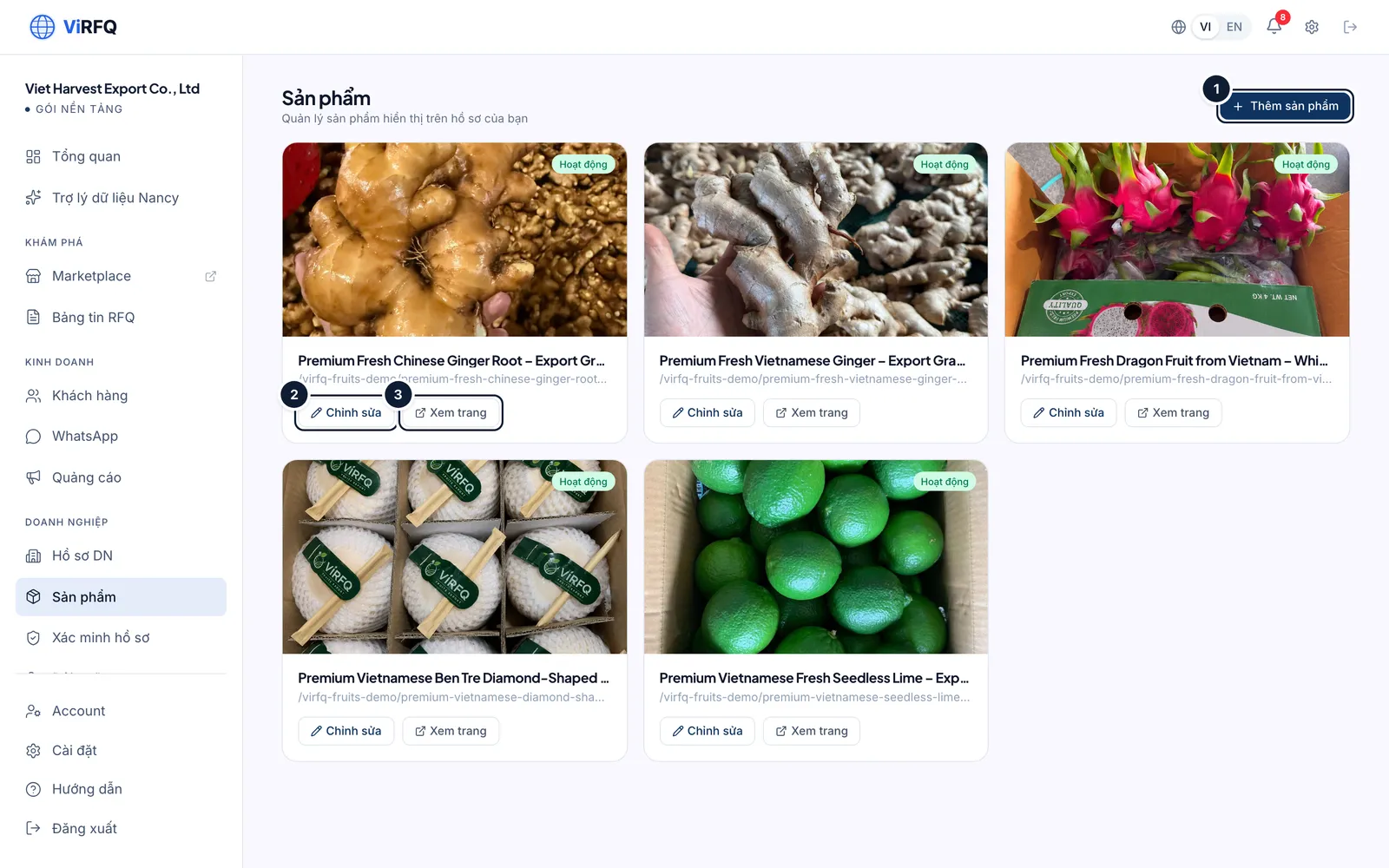
Products: (1) add, (2) edit, (3) view the public page.
Create a new product
Bước 1: Fastest: click Auto-fill from website (1) and paste the link of the product page on your own website — the AI reads it and pre-fills the name, description and specifications. Without a website, choose the category (2), type the product name (3) the way buyers search for it (for example "Robusta green coffee beans — Grade 1, Screen 16") and write the description (4).
- Upload at least 5 photos of the product to reach 80% completeness. Real photos of your goods, packing and containers convince more than stock images.
- Product details table: add one row per specification (moisture, size, impurities…) or use the suggestion buttons such as *+ Variety*, *+ Fruit size*, *+ Brix*.
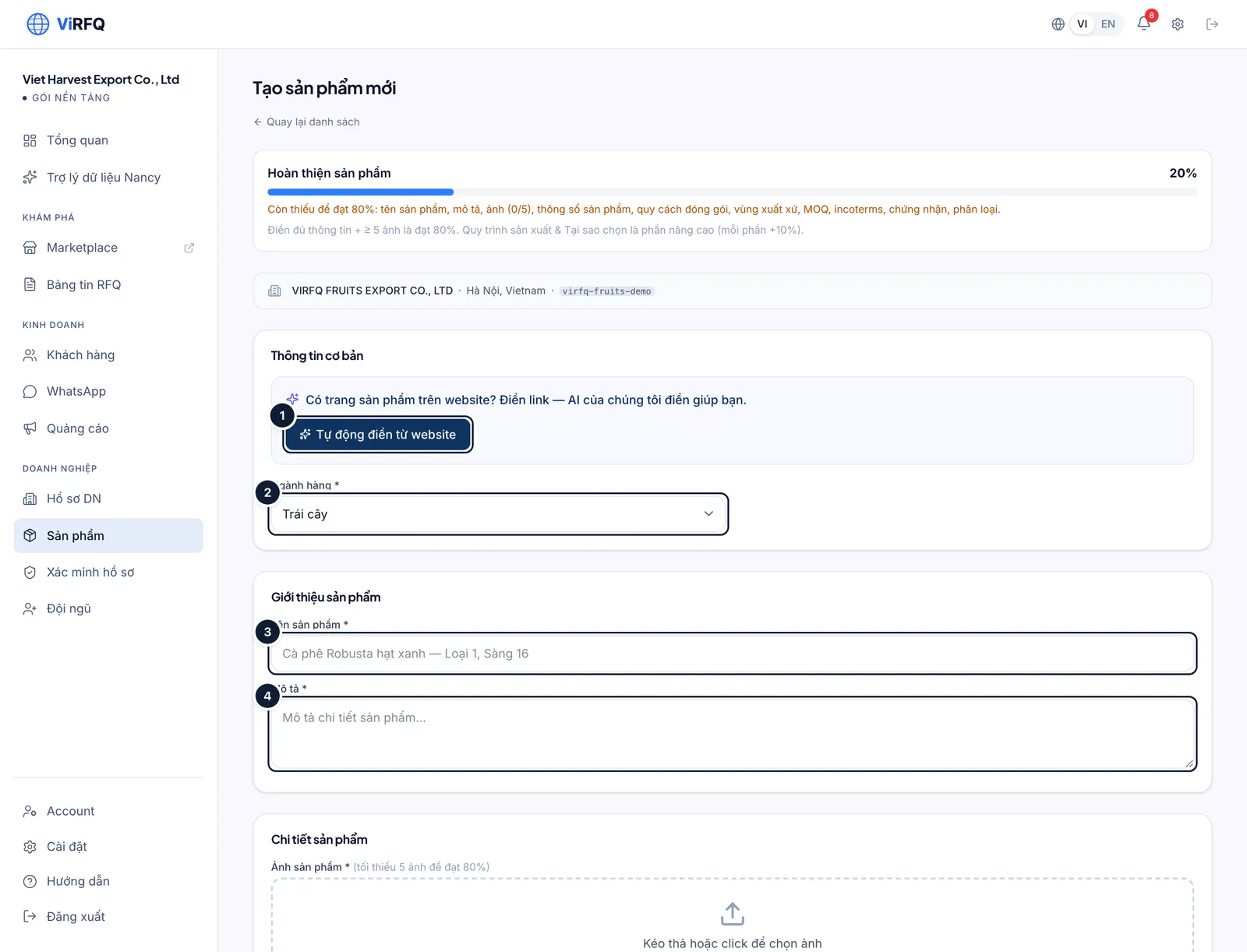
New product: (1) auto-fill, (2) category, (3) name, (4) description. Bước 2: Enter the origin region (1), the minimum order (2), the certificates (3: type to pick HACCP, ISO 22000, Halal…) and click the supported Incoterms (4).
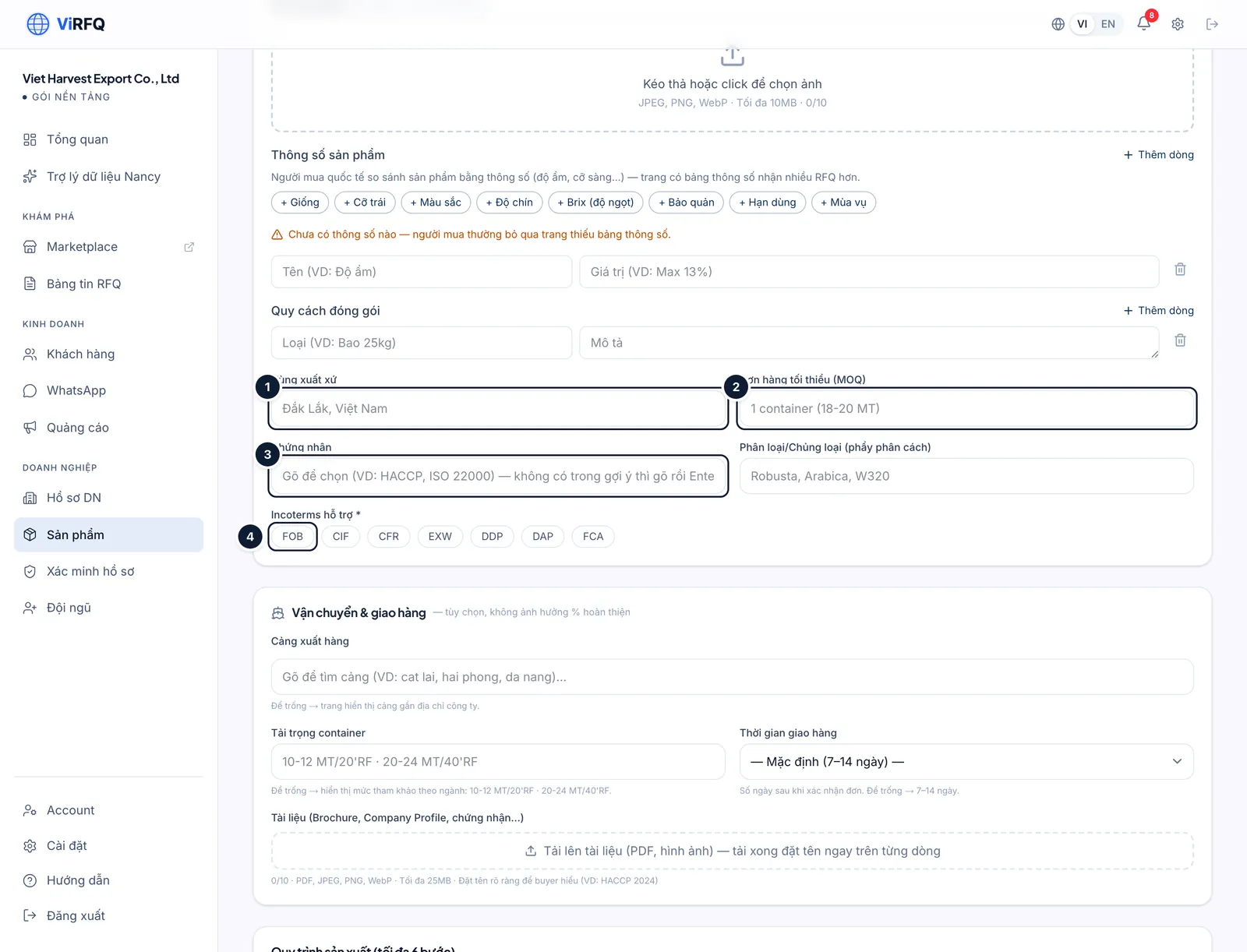
Details: (1) origin, (2) MOQ, (3) certificates, (4) Incoterms. Bước 3: In Shipping & delivery: type to pick the loading port (1), enter the container load (2, for example 10–12 t per 20-ft reefer) and choose the lead time (3). These three facts appear on the product page and in the WhatsApp assistant’s answers.
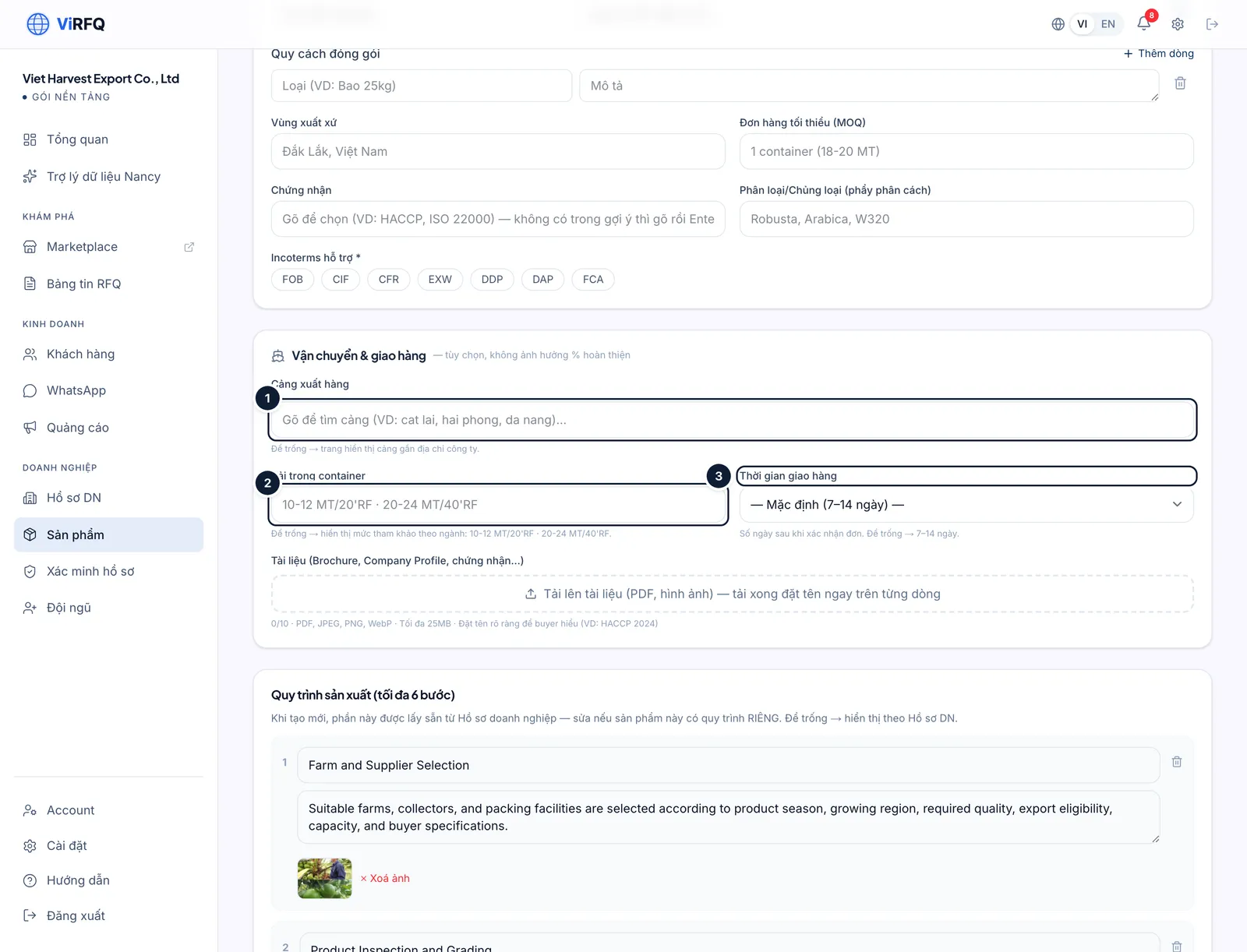
Shipping: (1) loading port, (2) container load, (3) lead time. Bước 4: At the bottom describe the production process, the strengths and the FAQ — click Generate FAQ from existing info (1) to let the AI draft it. Check everything, then click Create product (2).
- The product page address is generated automatically in English from the product name and never changes afterwards, so links already sent to buyers keep working.
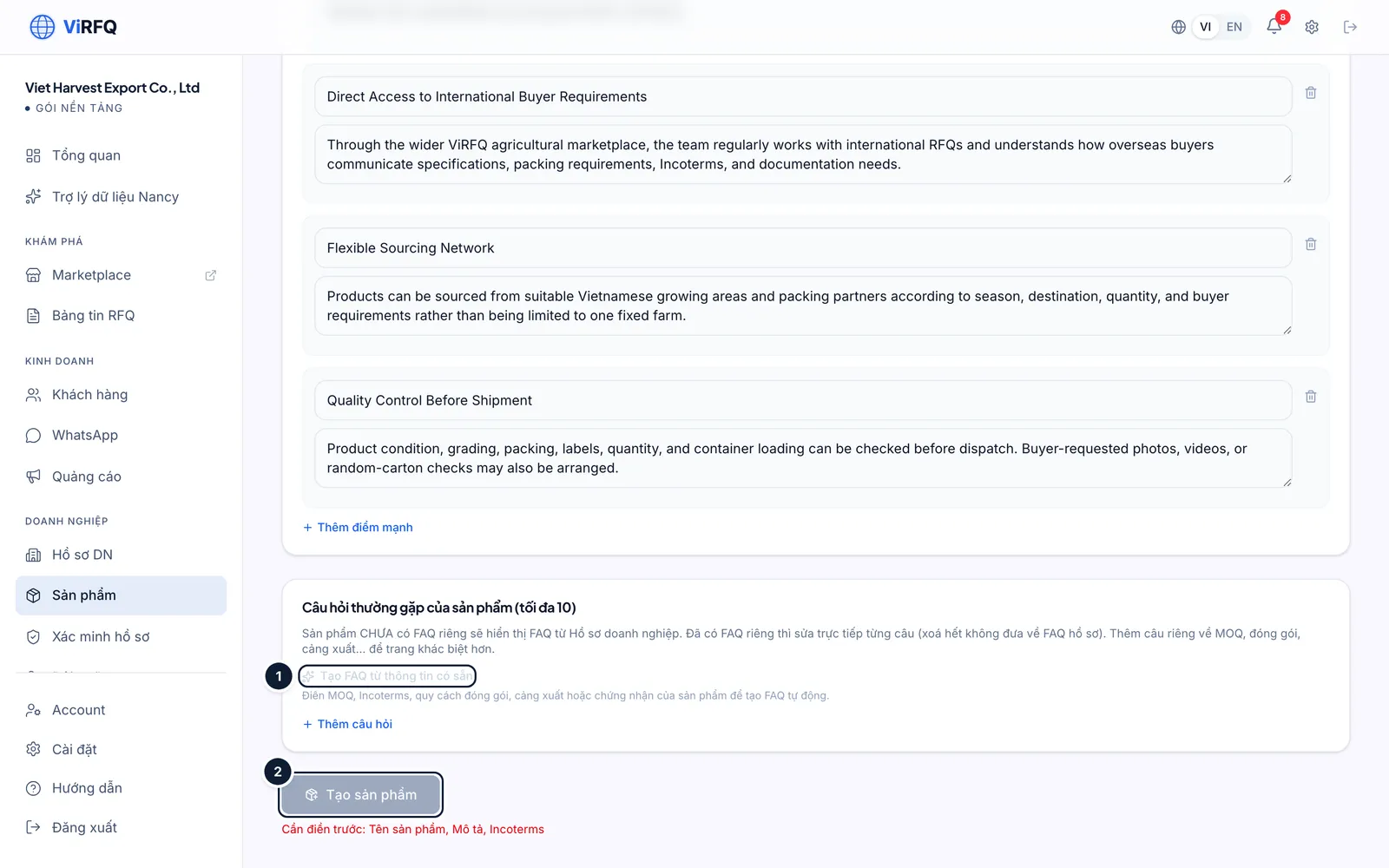
Finish: (1) generate the FAQ, (2) create the product.
Frequently asked questions
- How many products can I create?
- There is no limit. Prefer quality: give every page 5 photos, specifications and delivery terms.
- Why is my product page not on the Marketplace yet?
- A new product stays pending until the ViRFQ team reviews its content (usually within 1 working day). You can still preview it with View page.
- I want to rename or delete a product.
- Click Edit to change the content; the page address stays the same. To hide a product, contact support to switch it off without losing data.