Chapter 9 · WhatsApp and the auto-reply assistant
WhatsApp: connect a number, the inbox and the auto-reply assistant
Connect the company WhatsApp number, read and answer buyers in the Inbox, and let the assistant reply 24/7 from the price list and knowledge you provide.
Updated: 09/09/2026
Screenshots show the Vietnamese interface; the English interface has exactly the same layout — switch with the VI / EN toggle at the top right.
This feature is part of the Platform package.
International buyers prefer WhatsApp to email. ViRFQ brings your company WhatsApp number onto the platform: every message lands in a shared Inbox, the assistant replies even at midnight using exactly the price list and information you entered, collects the requirement (product, quantity, destination port) and alerts you when the buyer is ready for a quote. Messages are translated both ways, so you read and answer in Vietnamese.
Connect the WhatsApp number
Bước 1: Open WhatsApp › Auto-reply. Before connection, section 1 · WhatsApp number (1) reads No WhatsApp number connected yet (2) and the assistant is Off (3). The ViRFQ team connects the number together with you during onboarding after the plan is bought: you sign in to the company Facebook account in a Meta window, choose or create the WhatsApp Business account and verify the number by SMS/call — about 15 minutes.
- Prepare: the company phone number running the WhatsApp Business app (latest version, on the phone holding the SIM) and a Facebook account with admin rights on the page/company. The connection uses coexistence mode: you keep messaging on the phone as before, and messages in both directions also appear in the Inbox. A number on personal WhatsApp must be moved to WhatsApp Business first (the number stays the same), or use a new number that runs only through ViRFQ.
- Each company connects one number; sales staff share it.
- Book the onboarding through the Contact support button or the hotline in the footer.
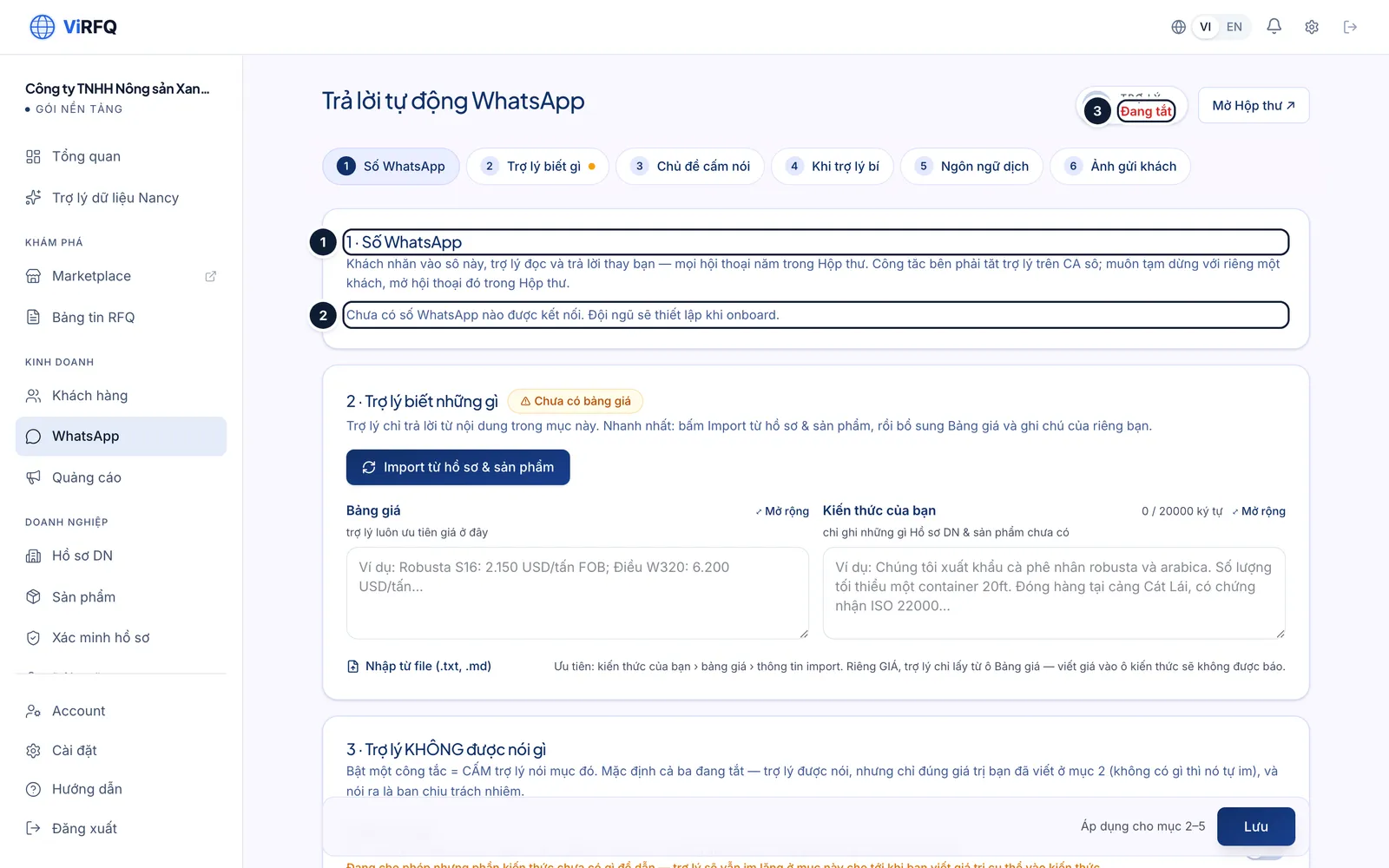
Not connected: (1) number section, (2) no number yet, (3) assistant off.
The Inbox
Bước 1: The Chats tab (1) lists every conversation, newest first, with a status label (Quote-ready, Needs support, RFQ won…). The Notifications tab (2) gathers what needs your action. The search box (3) finds a number or a message. Inside a conversation the Bot replies / I reply switch (4) decides who answers this buyer; Translate: In + Out (5) turns on two-way translation. The right column is Deal info (6) extracted from the chat: product, quantity, destination port, current stage. Type into the composer (7) to answer.
- With Translate: In + Out on, what you type in Vietnamese is translated into the buyer’s language before sending; you preview the translation first.
- Click I reply when you want to chat yourself; the assistant stays silent until you switch Bot replies back on.
- Pin important conversations with the pin icon; change the deal stage right in the right column — it syncs with Customers.
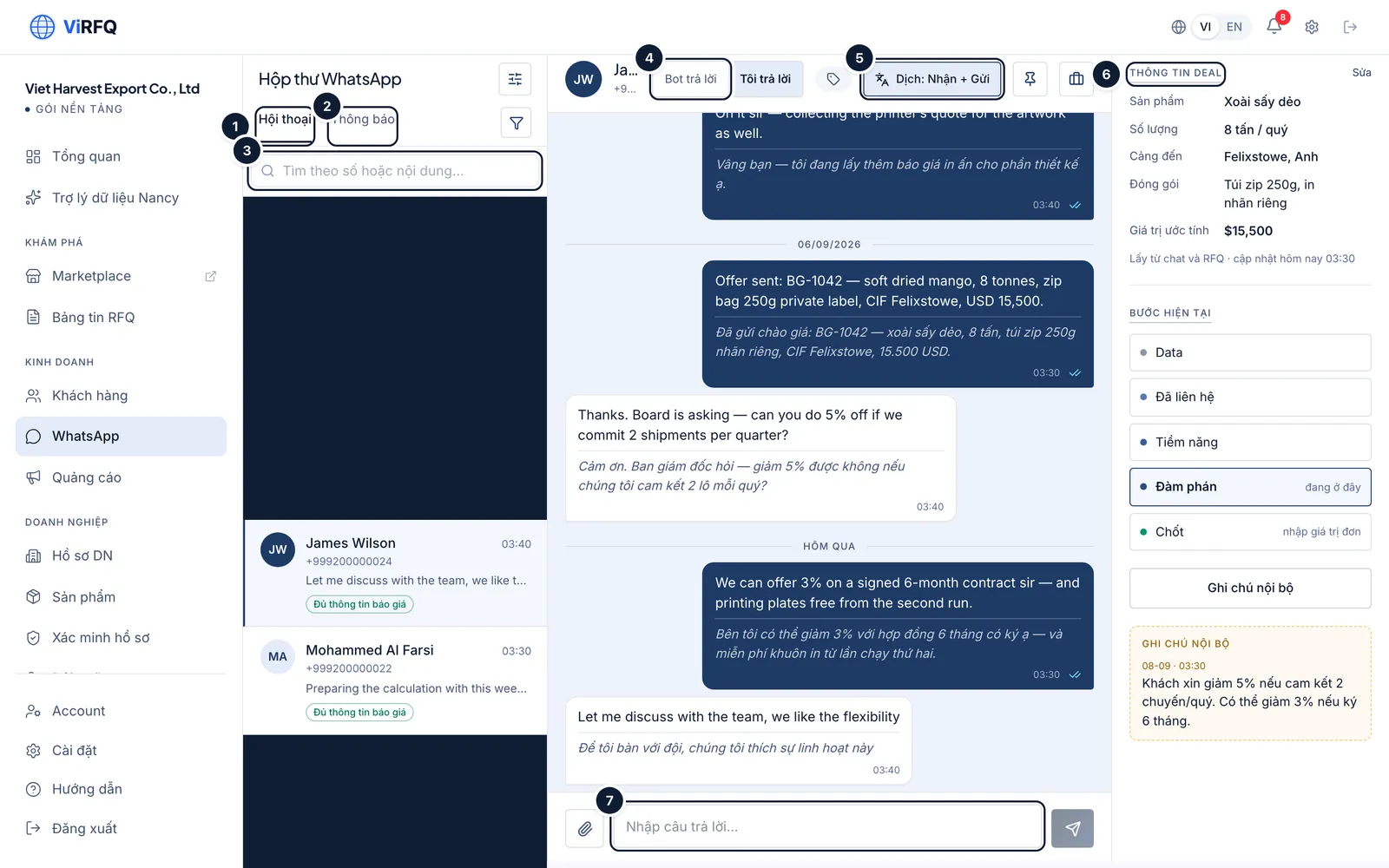
Inbox: (1) chats, (2) notifications, (3) search, (4) who replies, (5) translate, (6) deal info, (7) composer. Bước 2: Type a number or a keyword into the search box (1) to filter quickly, for example every buyer who asked about "dragon fruit". Click a row (2) to open the conversation.
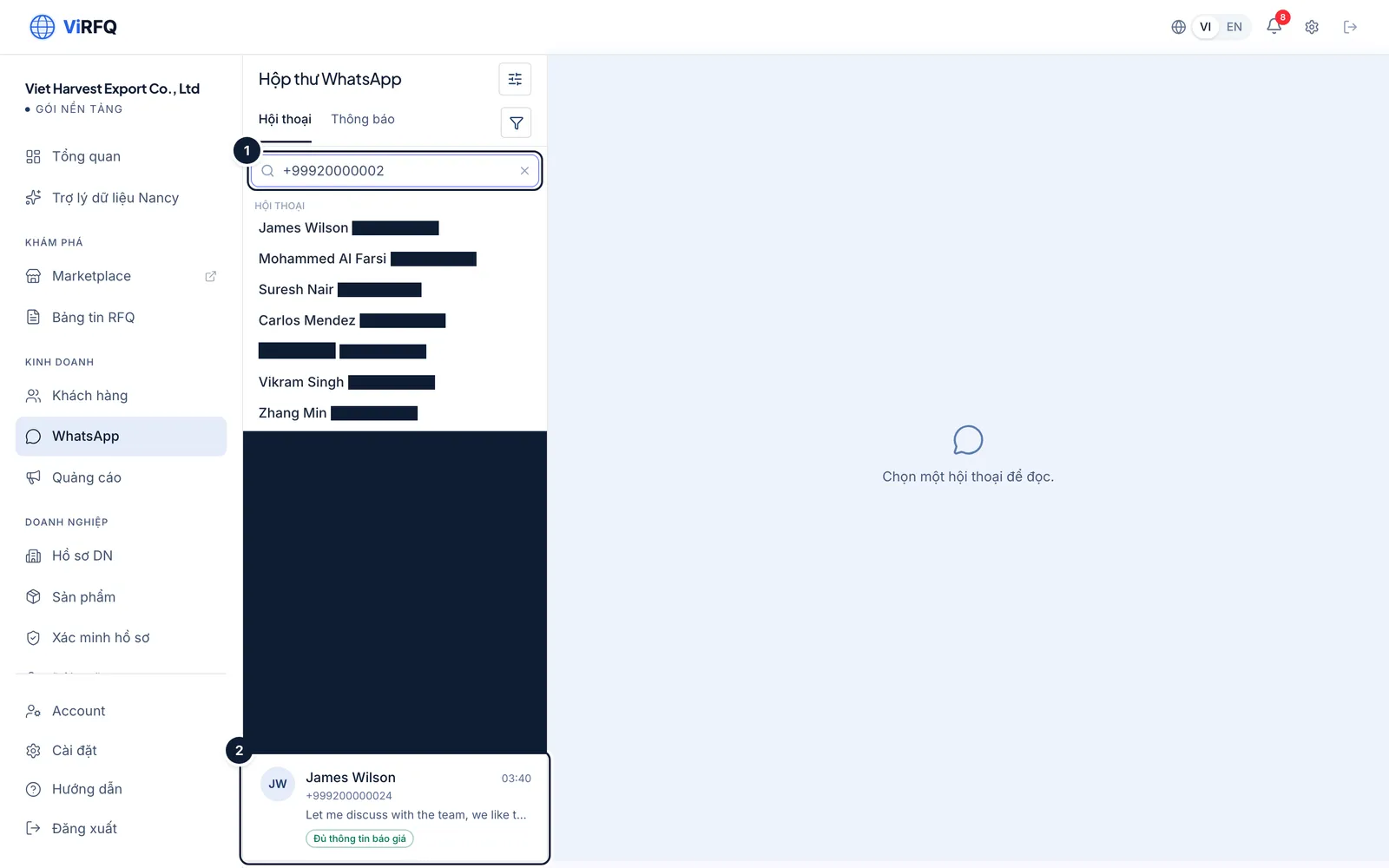
Find a conversation: (1) search box, (2) result row. Bước 3: The Notifications tab (1) lists the events the assistant raises for you: a buyer needs support, a buyer is ready for a quote, a buyer asked about a forbidden topic. Click a notification to jump to that conversation.
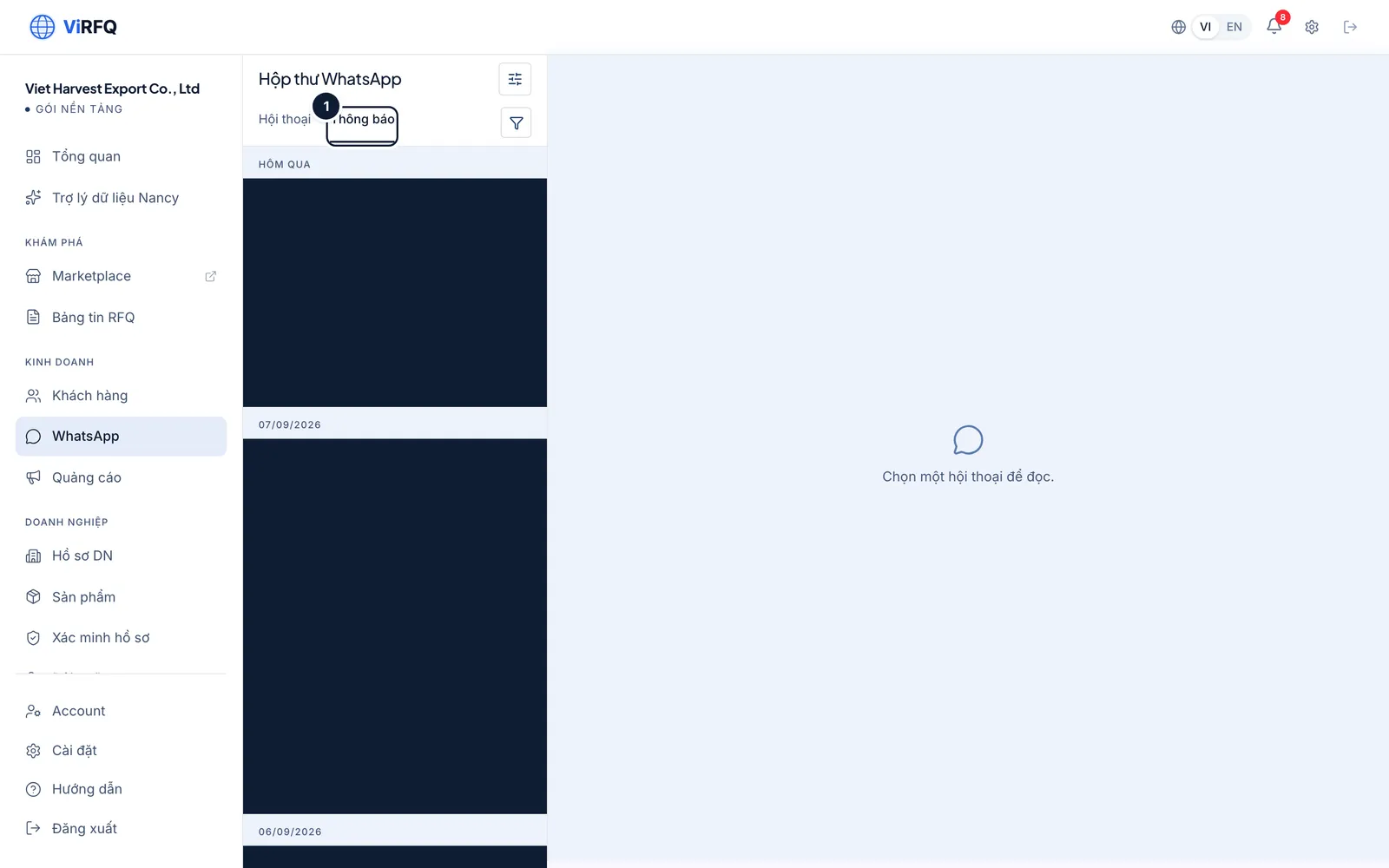
Notifications: (1) what needs your action. Bước 4: On a phone the list and the chat are two screens; tap the arrow to go back to the list.
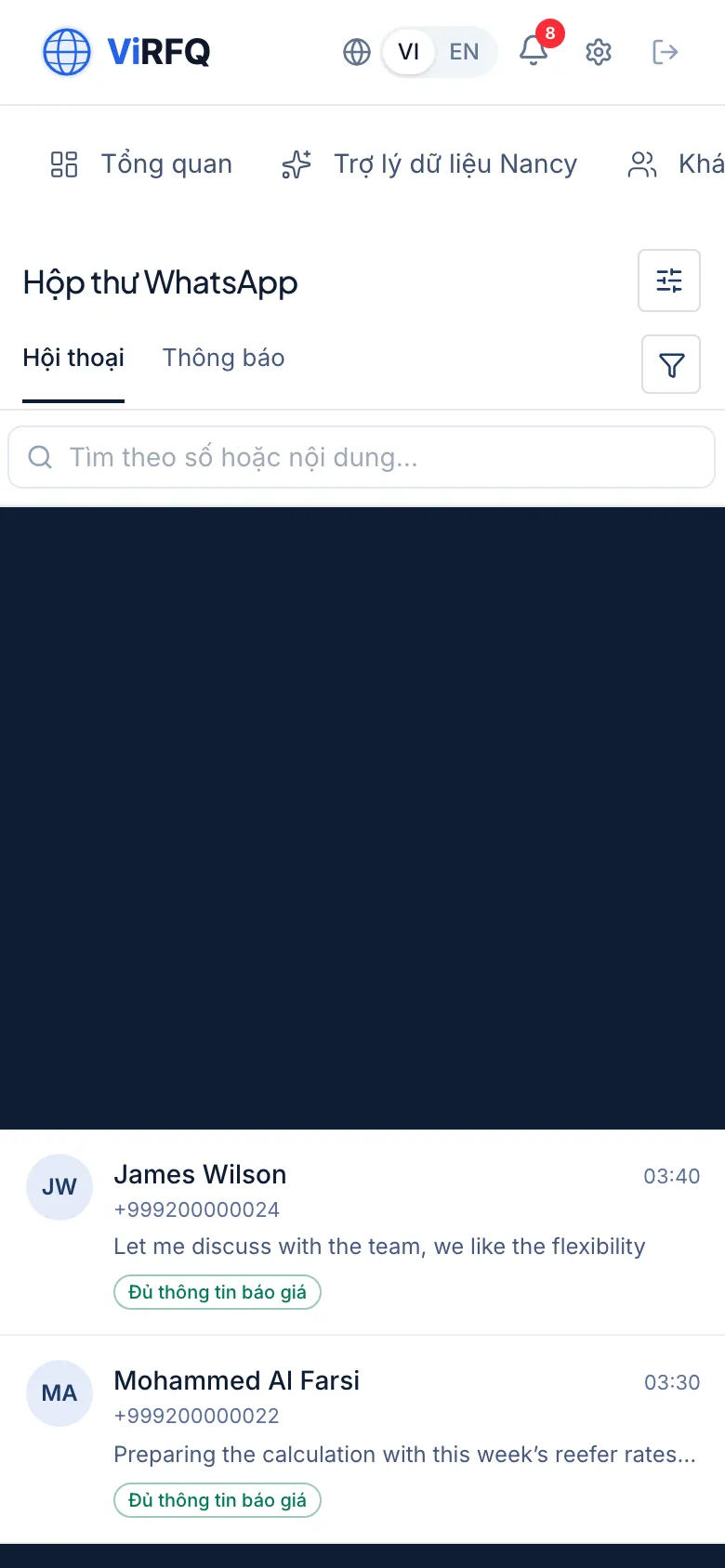
The WhatsApp Inbox on a phone
Auto-reply assistant settings
Bước 1: In the Inbox click the settings icon, or open WhatsApp › Auto-reply. Section 1 · WhatsApp number (1) has the switch that turns the assistant on or off for the whole number (2). Section 2 · What the assistant knows: click Import from profile & products (3) to load company and product information, then fill in the Price list (4) and Your knowledge (5) — payment terms, ports, lead times, the questions buyers ask most.
- The assistant answers only from the content of these two boxes. Priority: the knowledge you wrote › the price list › the imported information. For the assistant to quote a price, the price must be in the Price list box.
- You can import knowledge from a .txt/.md file. Limit 20,000 characters — keep it short and to the point.
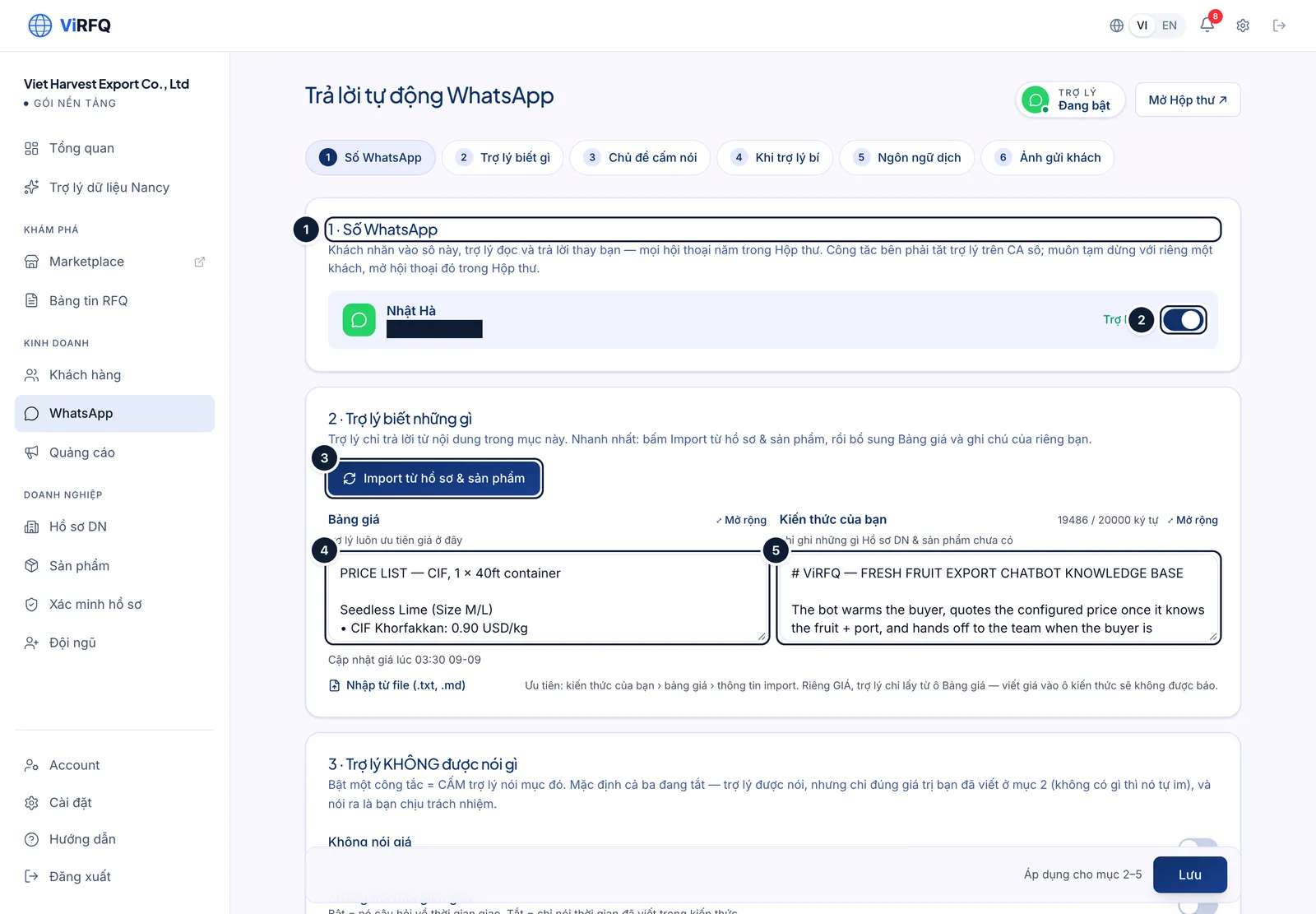
Settings: (1) number, (2) assistant on, (3) import from profile, (4) price list, (5) knowledge. Bước 2: Section 3 · What the assistant must NOT say: switch on No prices (1), no lead times or payment terms if you want to answer those yourself. Turn the assistant off for all old buyers (2) leaves the conversations you were already handling before the connection untouched. Section 4 (3) chooses what happens when a buyer asks something the assistant does not know: keep asking questions to close, or hand over to you immediately. Click Save (4) after changing anything.
- Safety topics (a buyer demands a human, complaints, legal questions) are always handed over to you whatever the settings.
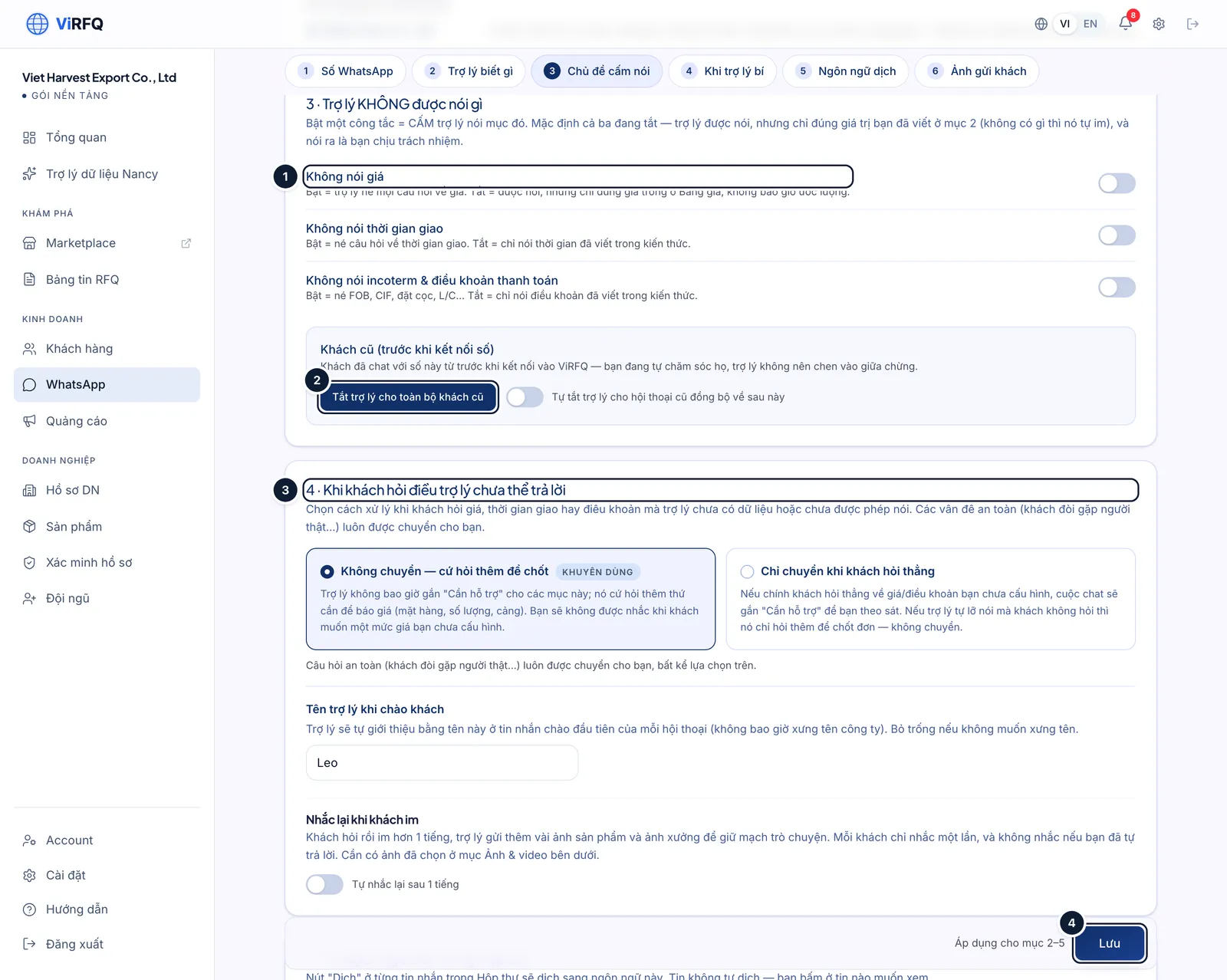
Assistant limits: (1) no prices, (2) off for old buyers, (3) when the assistant is stuck, (4) save. Bước 3: The Follow up when a buyer goes quiet block (1) lets the assistant send a reminder after a few hours of silence — on or off as you like. Section 5 · Translate language (2) sets the language you want to read in the Inbox; whatever language a buyer writes in is translated into it.
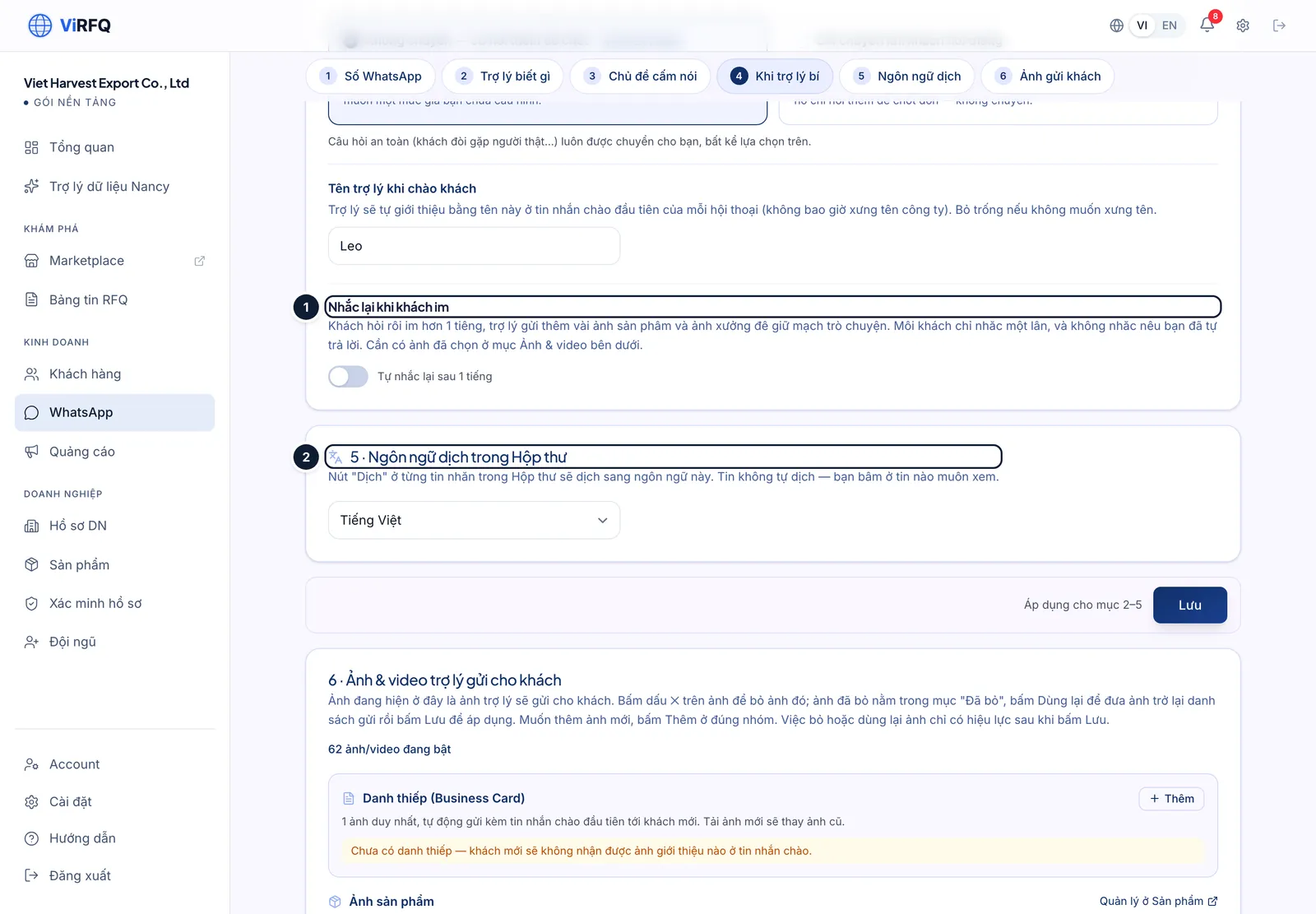
Follow-ups and language: (1) follow up when quiet, (2) translate language. Bước 4: Section 6 · Photos & videos: click Upload photo/video (1) to add factory photos, product photos, packing videos — the assistant sends the right one when a buyer asks. Photos attached to a product are managed under Products; factory photos come from the Business Profile.
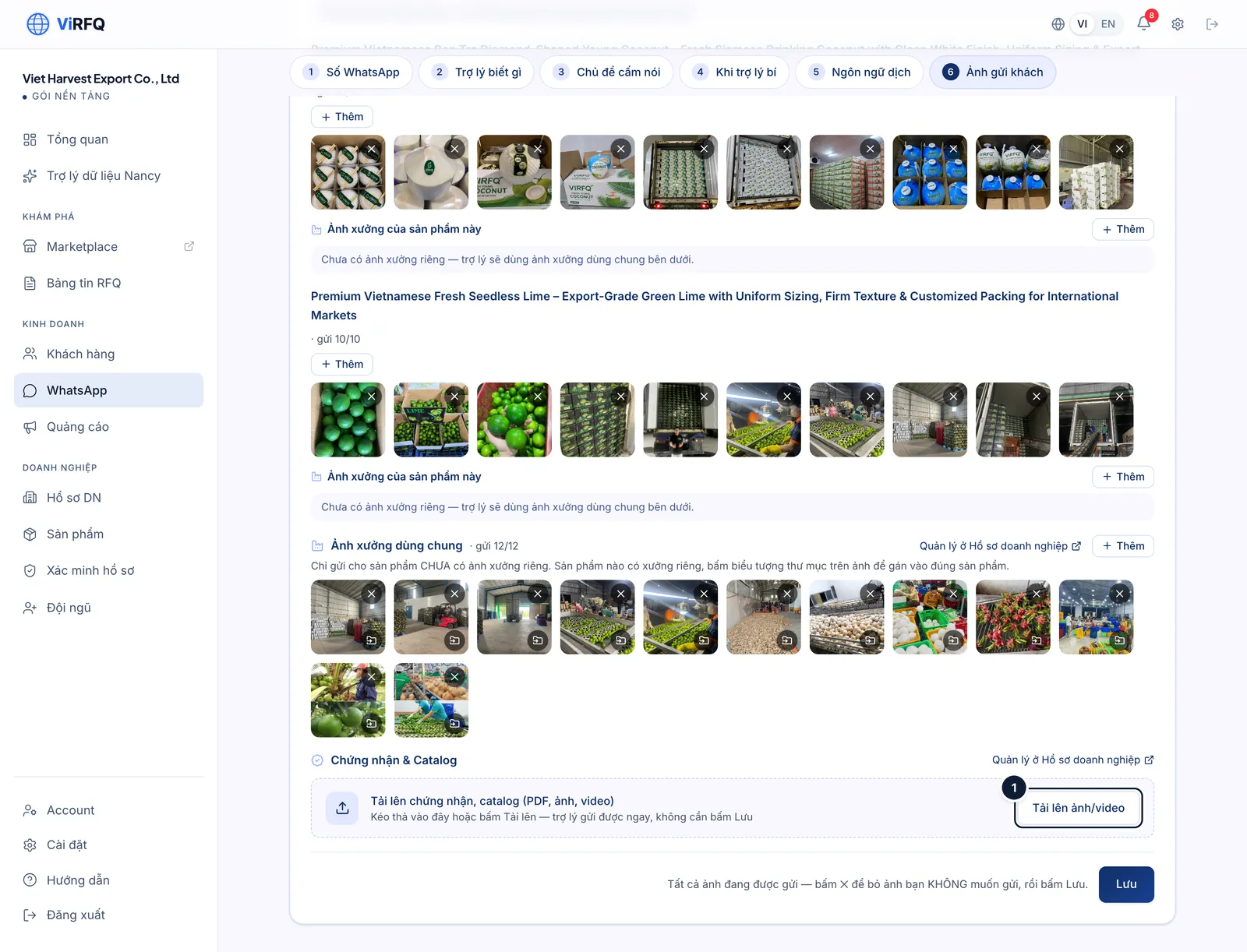
Media for buyers: (1) upload.
Frequently asked questions
- A buyer wrote but the assistant did not reply.
- Check in this order: the switch in section 1 is on; that conversation is not in "I reply" mode; the buyer is not among the "old buyers" you switched off; the plan is still active. If none of that helps, contact support.
- I want to use the WhatsApp number already on my phone.
- Yes. If that number runs the WhatsApp Business app, the team connects it in coexistence mode: you keep chatting on the phone while messages in both directions also show in the Inbox and the assistant replies when switched on. A number on personal WhatsApp is moved to WhatsApp Business first (same number), then connected.
- What if the assistant quotes the wrong price?
- The assistant only takes prices from the Price list box. Correct the price list and click Save; later conversations use the new price. To be safe, switch on "No prices" and quote yourself.