Chapter 8 · Customers and pipeline
Managing customers in the pipeline
Track every deal from first contact to a closed order on the Kanban board, with notes, estimated value and a win-rate report.
Updated: 09/09/2026
Screenshots show the Vietnamese interface; the English interface has exactly the same layout — switch with the VI / EN toggle at the top right.
Customers gathers every buyer who has contacted you — via WhatsApp, an unlocked RFQ, the form on a product page or added by hand — into one progress board (pipeline). Each customer is a card; drag it through the Data → Contacted → Prospect → Negotiating → Won columns as the deal moves on. New buyers from WhatsApp and RFQs are added automatically.
The Kanban board
Bước 1: Open Customers in the left column. Choose the pipeline (1) — "Export sales" by default — and the Kanban view (2). Filter by Source (3: RFQ, Form, WhatsApp, Own research), country, stage, or switch on Going stale to see buyers with no recent activity. Click Add contact (4) to add a buyer you found outside ViRFQ.
- Each card shows the name, company, country, product of interest, estimated value and the source label. The Stale label appears when a buyer has been silent for days — message them again, or click the × on the card to mark the buyer lost with a reason.
- The summary line above shows how many customers are at each stage, the total pipeline value and the orders won in the last 30 days.
- Drag cards between columns (5) to update the stage. Need an extra stage? Click + Add column.
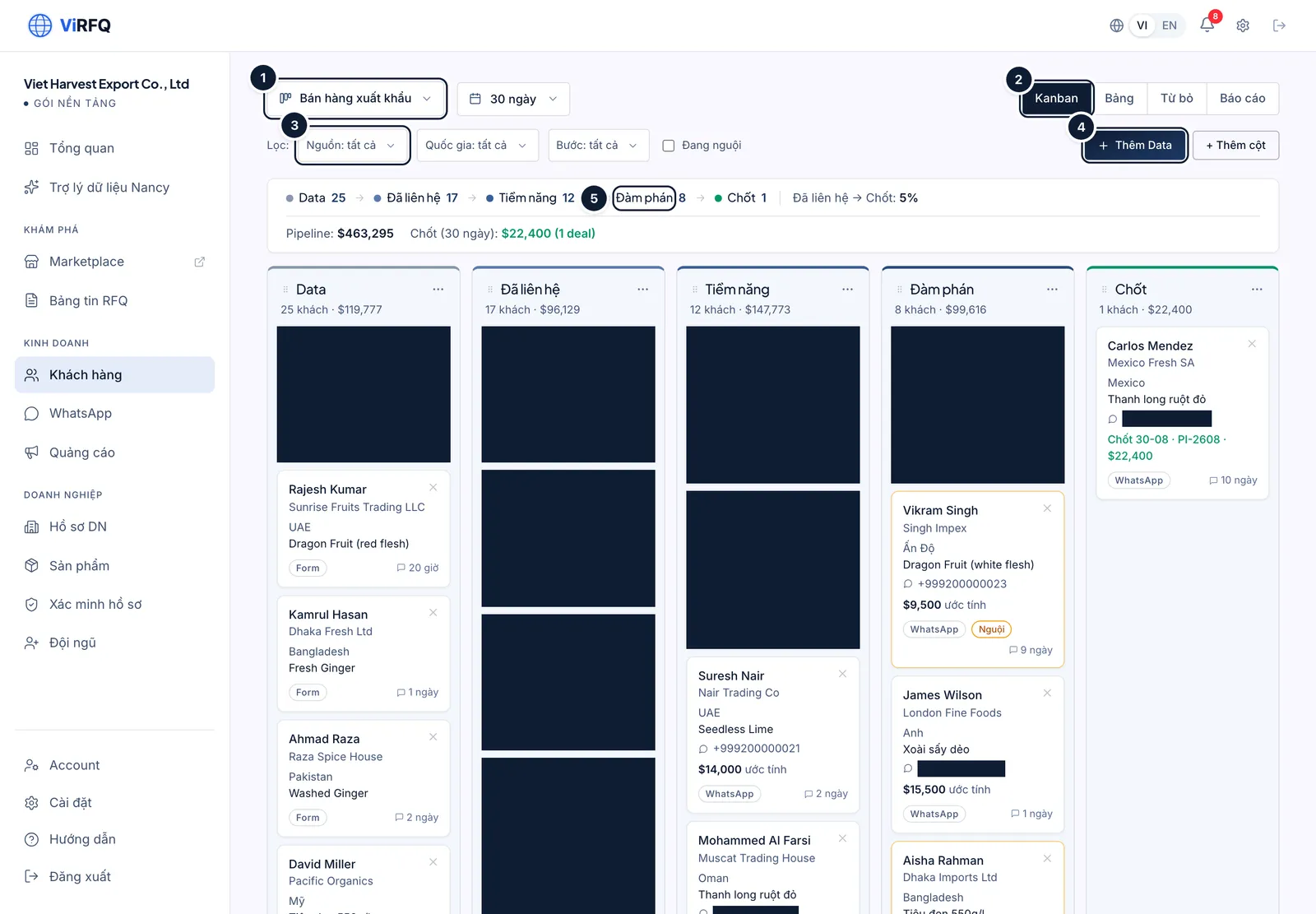
Customers: (1) pipeline, (2) Kanban view, (3) source filter, (4) add a contact, (5) stage columns. Bước 2: Click a card to open the customer details: contact details, product and quantity taken from the chat/RFQ, current stage, history. Click Open WhatsApp (1) to message right away; enter the estimated value (2) so reports add up; Add note (3) for colleagues.
- When you win an order, drag the card to Won and enter the order value — it feeds the "Won" tile on the Overview and the ads report.
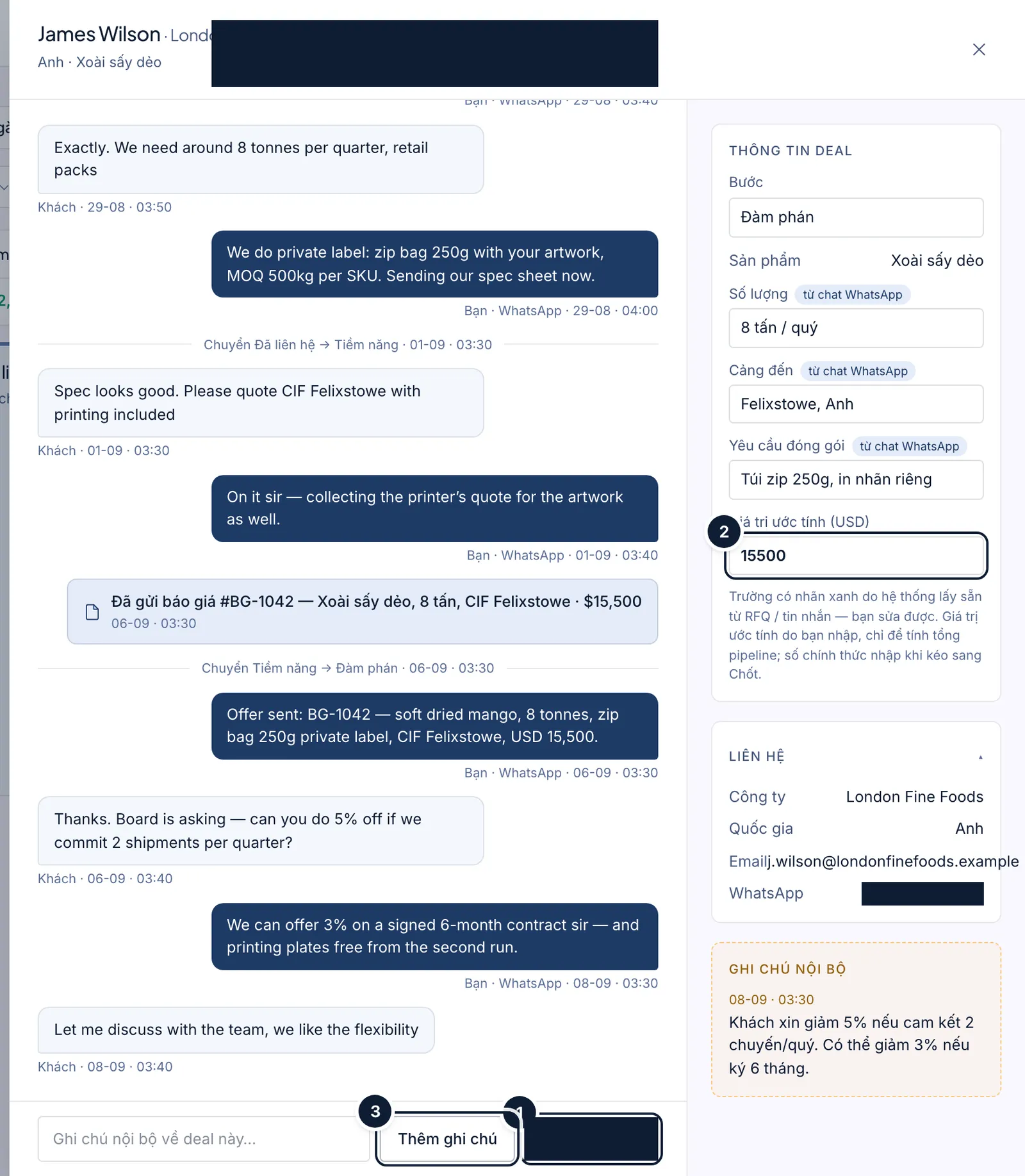
Customer details: (1) open WhatsApp, (2) estimated value, (3) internal note. Bước 3: The Table view (1) lists every customer as a table for quick filtering and sorting; Report (2) shows the conversion rate between stages, the stage with the biggest drop-off and the average order value.
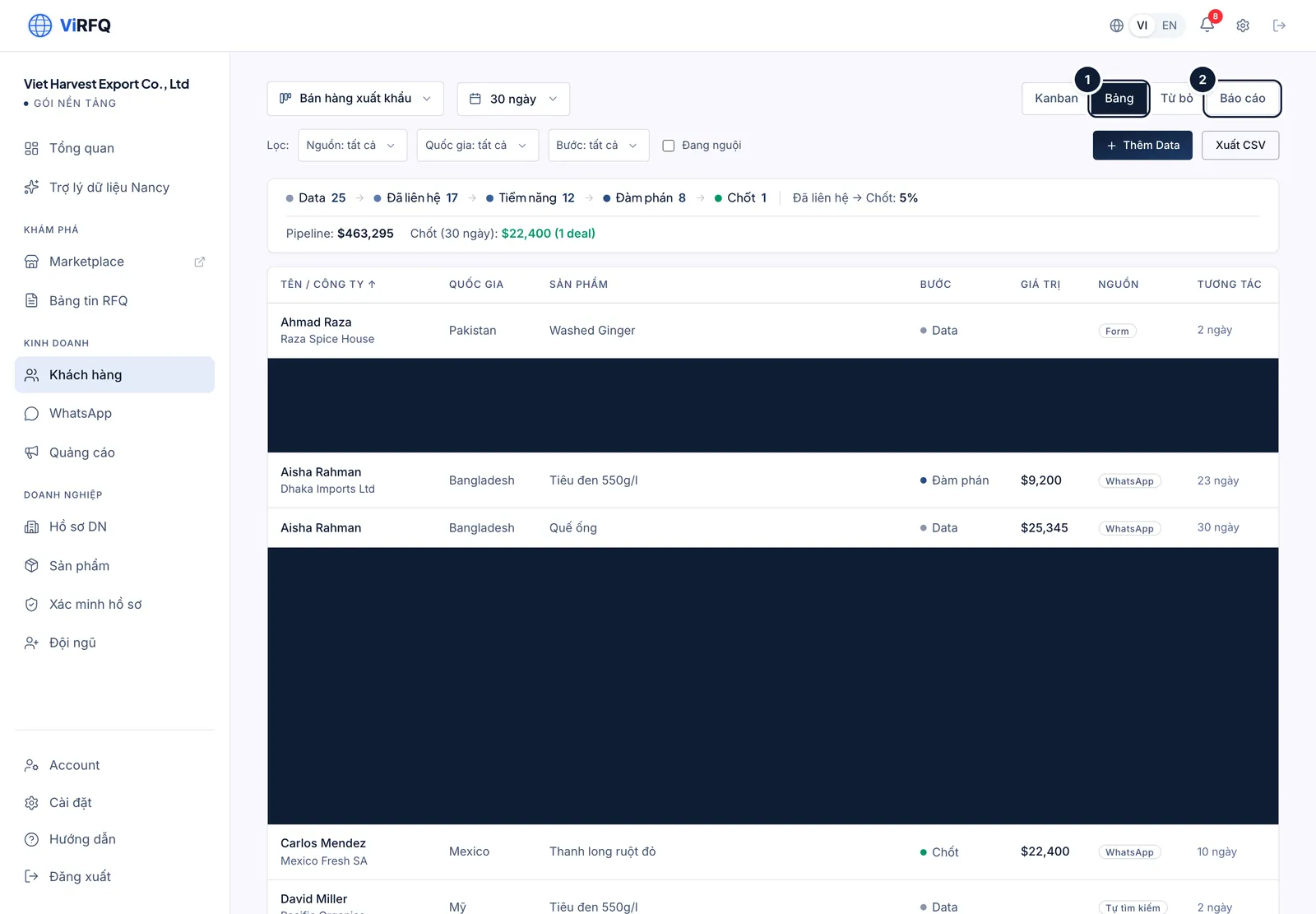
Views: (1) Table, (2) Report. Bước 4: On a phone the columns become a list; swipe sideways to change column.
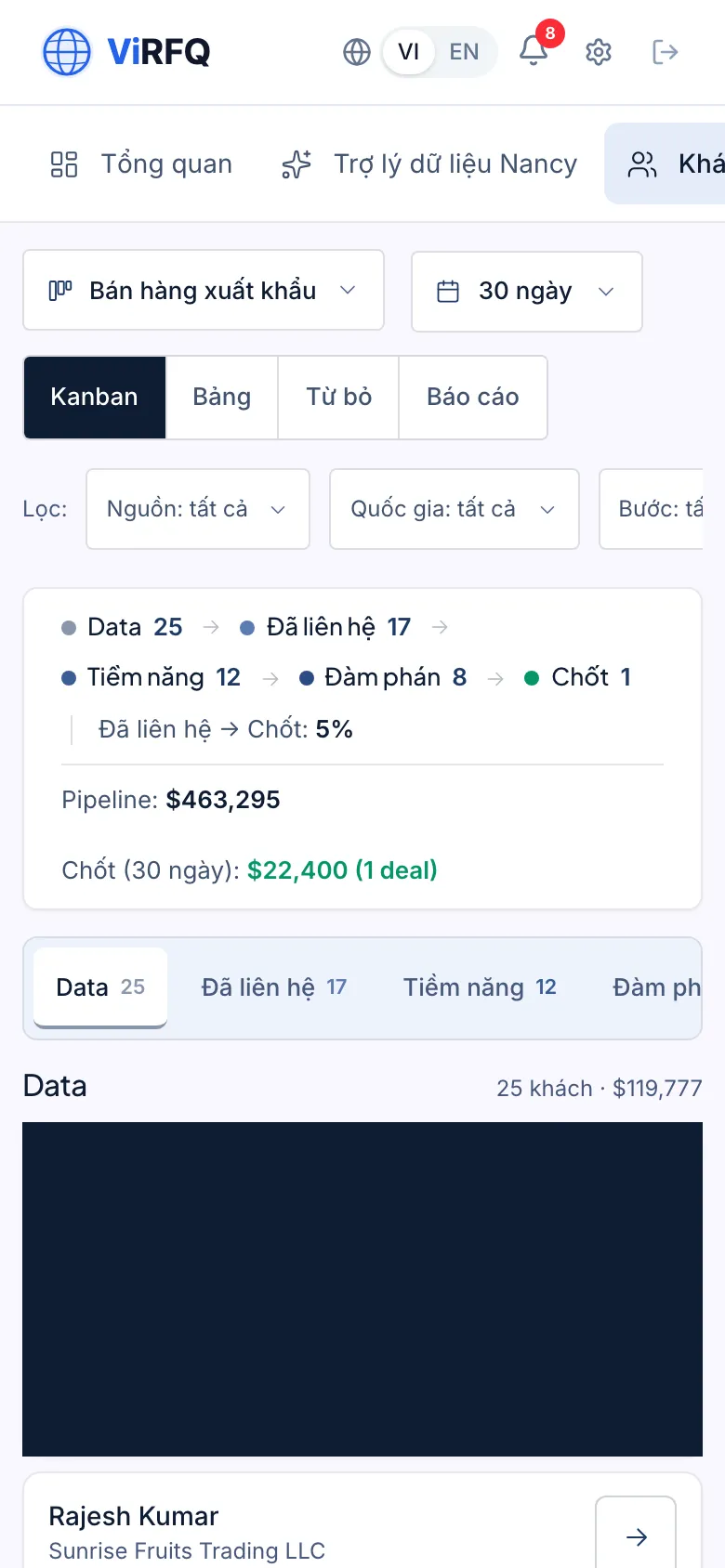
Customers on a phone
Frequently asked questions
- When does a WhatsApp buyer enter the pipeline automatically?
- Once the assistant has collected enough to quote (product, quantity, destination port) — at that moment a card is created directly in the Contacted column with source WhatsApp. A buyer who has only said hello has no card yet: follow them in the Inbox, or click Add contact to add them yourself.
- I dragged a card to the wrong column.
- Drag it back. Every stage change is recorded in the card history, so nothing is lost.
- Can I delete a customer?
- Do not delete — click the × on the card and choose a reason to mark it Lost; the report needs to know why a customer was lost. Lost cards leave both the Kanban and the Table view and sit in the Lost tab (next to Kanban / Table / Report) — click Restore there if the buyer comes back.