Chapter 10 · Meta Ads
Meta Ads: connect your ad account and see how many buyers your ad spend brings
Connect the company Meta ad account so ViRFQ links ad spend to WhatsApp messages, pipeline customers and won orders.
Updated: 09/09/2026
Screenshots show the Vietnamese interface; the English interface has exactly the same layout — switch with the VI / EN toggle at the top right.
This feature is part of the Platform package.
Only the owner account can do this; staff accounts do not see this section.
The most effective way to get buyers messaging you is running Click-to-WhatsApp ads on Facebook/Instagram for your product pages. You run the ads on your own Meta account and pay Meta directly — ViRFQ does not hold any ad budget. The Platform plan includes campaign setup support and a tracking page: connect the ad account, ViRFQ matches every WhatsApp message to the ad that produced it, then follows it into the pipeline and to won orders.
Connect the ad account
Bước 1: Open Ads in the left column. The first time, click the connect button (1): sign in to the Facebook account that administers the ad account, allow ViRFQ to *read* ad data, then choose the ad account to track. ViRFQ only reads figures — it never creates, edits or spends anything in your account. If the Ads page shows no connect button, the feature has not been switched on for your account yet — click Contact support and the team will enable it.
- Several ad accounts can be connected; figures are shown combined or per account.
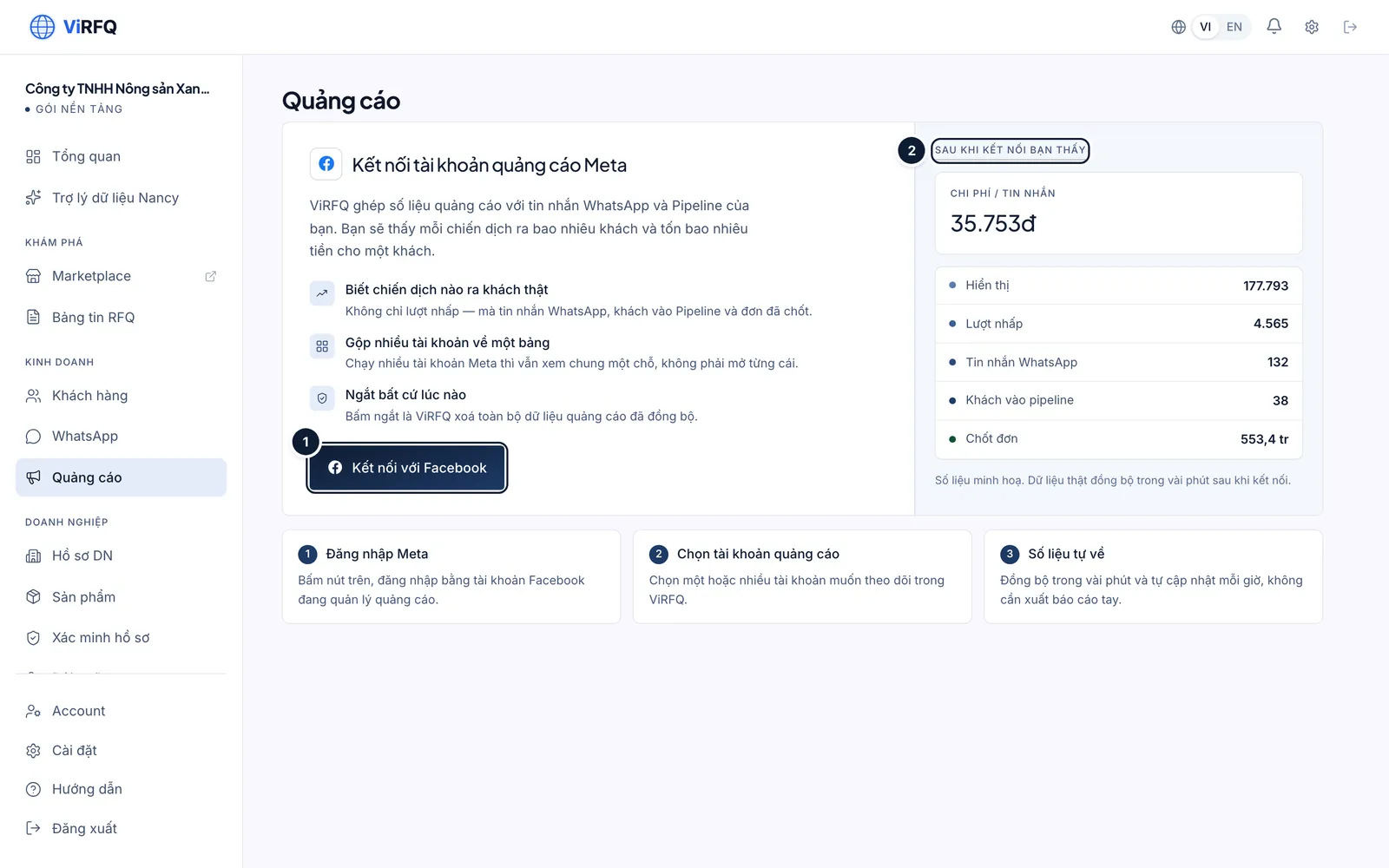
Connect Meta Ads: (1) sign in and grant read access.
Reading the Ads page
Bước 1: After connecting, figures sync on a schedule; click Sync again (1) for fresh numbers. Choose the account (2) and the period. Five tiles: Spend, Messages from ads, Cost per message (3), Customers in pipeline (4) and Orders won from ads. Click View customers in Pipeline (5) to open exactly the buyers that came from ads.
- The From ad spend to orders block is a funnel: impressions → clicks → WhatsApp messages → customers in pipeline → orders won. Look at which step drops the most to know whether to fix the ad or the way you reply.
- The daily chart compares spend with messages; a day with high spend and few messages hints that the ad or the product page is not convincing.
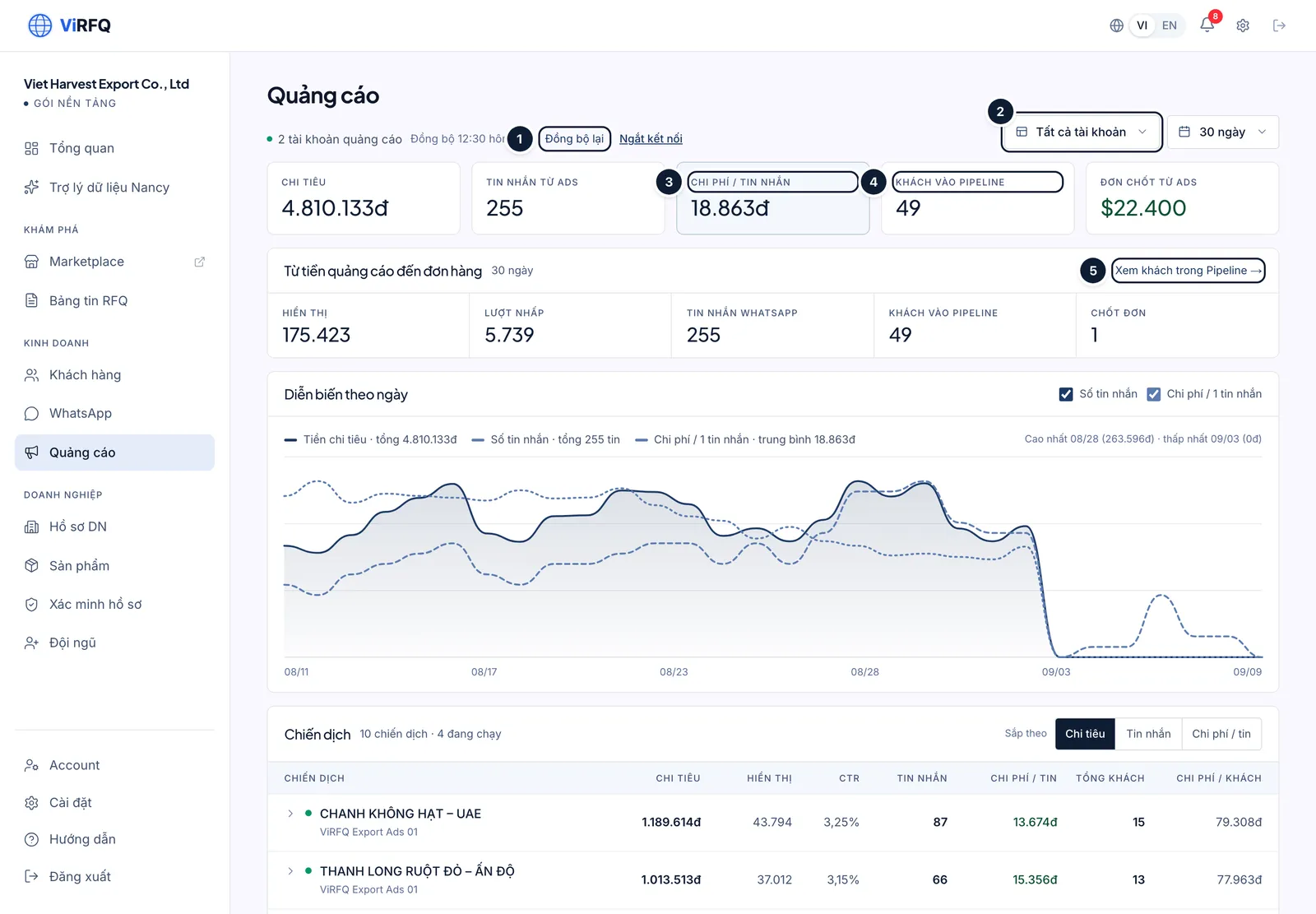
Ads: (1) sync, (2) account, (3) cost per message, (4) customers in pipeline, (5) view customers. Bước 2: The Campaigns table (1) lists every campaign with spend, impressions, CTR, messages, cost per message, customers and cost per customer. Sort by Cost / message (2) to see which campaign is cheapest; click the arrow to see each ad set.
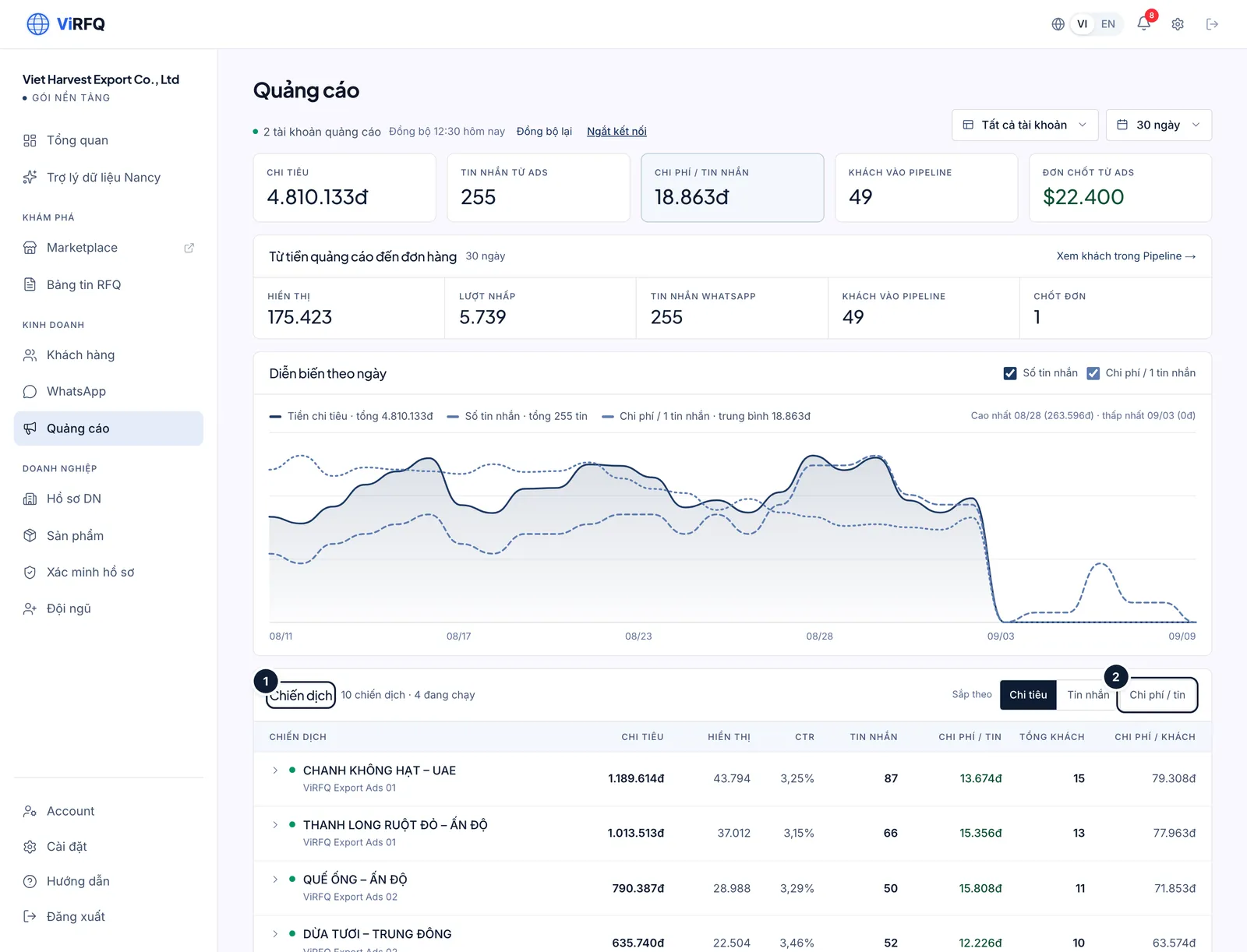
Campaigns: (1) table, (2) sort by cost per message.
Frequently asked questions
- Does ViRFQ run the ads for me and collect the budget?
- No. You run and pay Meta directly on your own account. ViRFQ helps with setup and provides the tracking page.
- What do I lose if I disconnect?
- Disconnecting revokes read access and deletes all synced ad data from ViRFQ (campaigns, spend, messages attributed to ads). Your Meta account and running ads are not affected. You can reconnect at any time; ViRFQ syncs again from Meta, but the deleted history may not come back in full.
- Why do the message counts on ViRFQ differ from Meta Ads Manager?
- ViRFQ counts real messages that reached the Inbox and were matched to an ad; Meta counts click/open-chat events even when the buyer never wrote. The ViRFQ number reflects real buyers.