Chapter 0 · Getting started with ViRFQ
Register, verify your email and sign in
Create a free exporter account, enter the 6-digit verification code, complete the first company details and sign in to the dashboard.
Updated: 09/09/2026
Screenshots show the Vietnamese interface; the English interface has exactly the same layout — switch with the VI / EN toggle at the top right.
This article is for a company using ViRFQ for the first time. You will create an account, verify your email, enter a few company details and reach the dashboard. The whole flow takes about 3 minutes and is free — no card or bank transfer needed yet.
Step 1: Create the account
Bước 1: Open virfq.com/en/register. Choose the Exporter role (1) — overseas buyers choose the box next to it.
- Enter your full name (2) and the exporting company name (3) exactly as on the business registration — this name appears on the public profile and on invoices.
- Use a work email (4) you read every day: verification codes, new-RFQ alerts and buyer messages all go there.
- Phone number (5): type it without the leading 0; the +84 country code is preselected. Password (6): at least 8 characters.
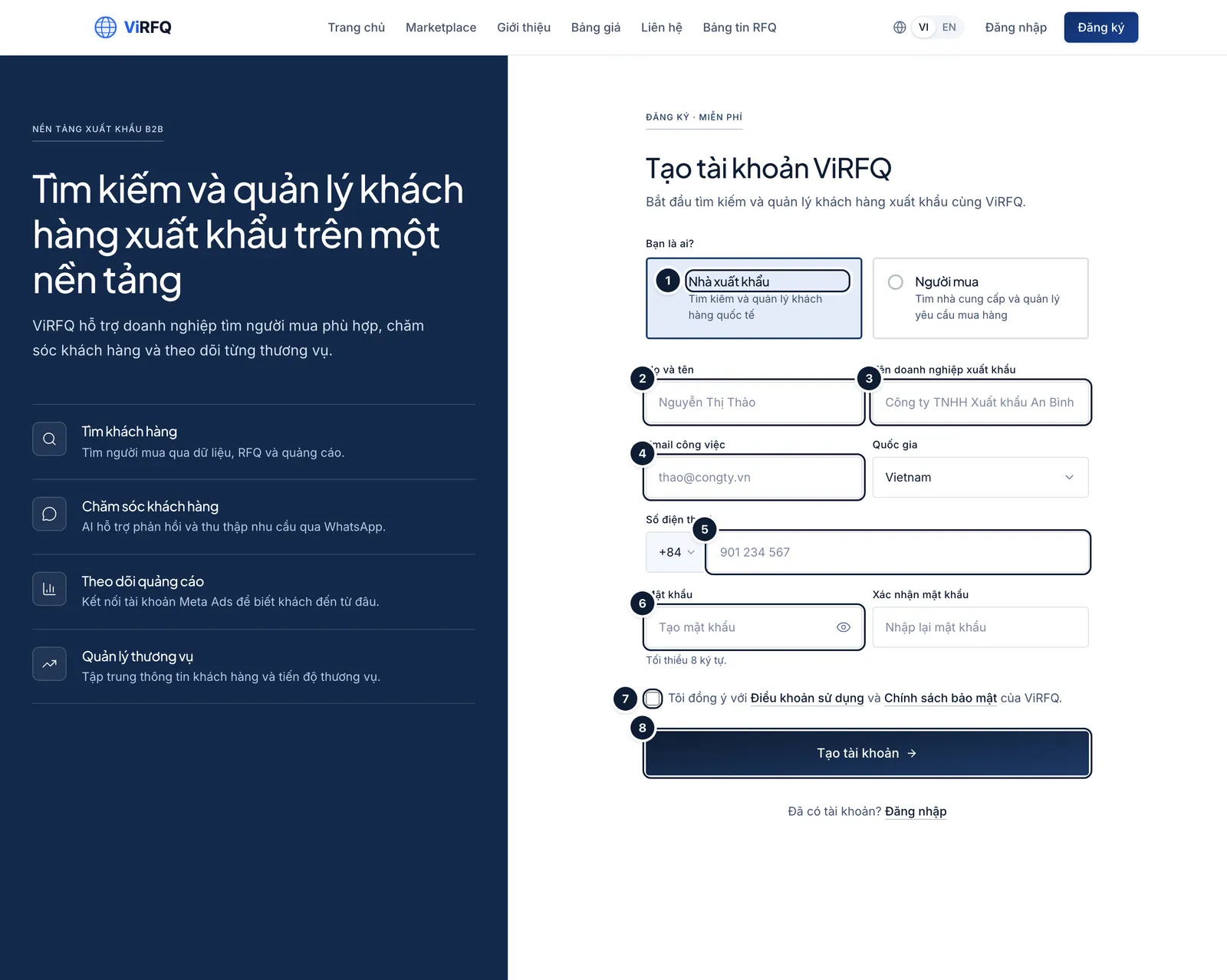
Registration form: (1) role, (2) full name, (3) company name, (4) work email, (5) phone, (6) password, (7) accept the terms, (8) Create account. Bước 2: Tick the Terms of Service box (7) and click Create account (8). The system moves to the email verification screen.
Step 2: Verify the email with the 6-digit code
Bước 1: Open your mailbox and find the ViRFQ email with the 6-digit code. Enter it in the six boxes (1) — you can paste the whole code at once. Click Verify and enter ViRFQ (2).
- No email? Check the Spam/Promotions folder or click Resend code (3). The code is valid for 6 hours; the email also contains a link you can open instead of typing the code.
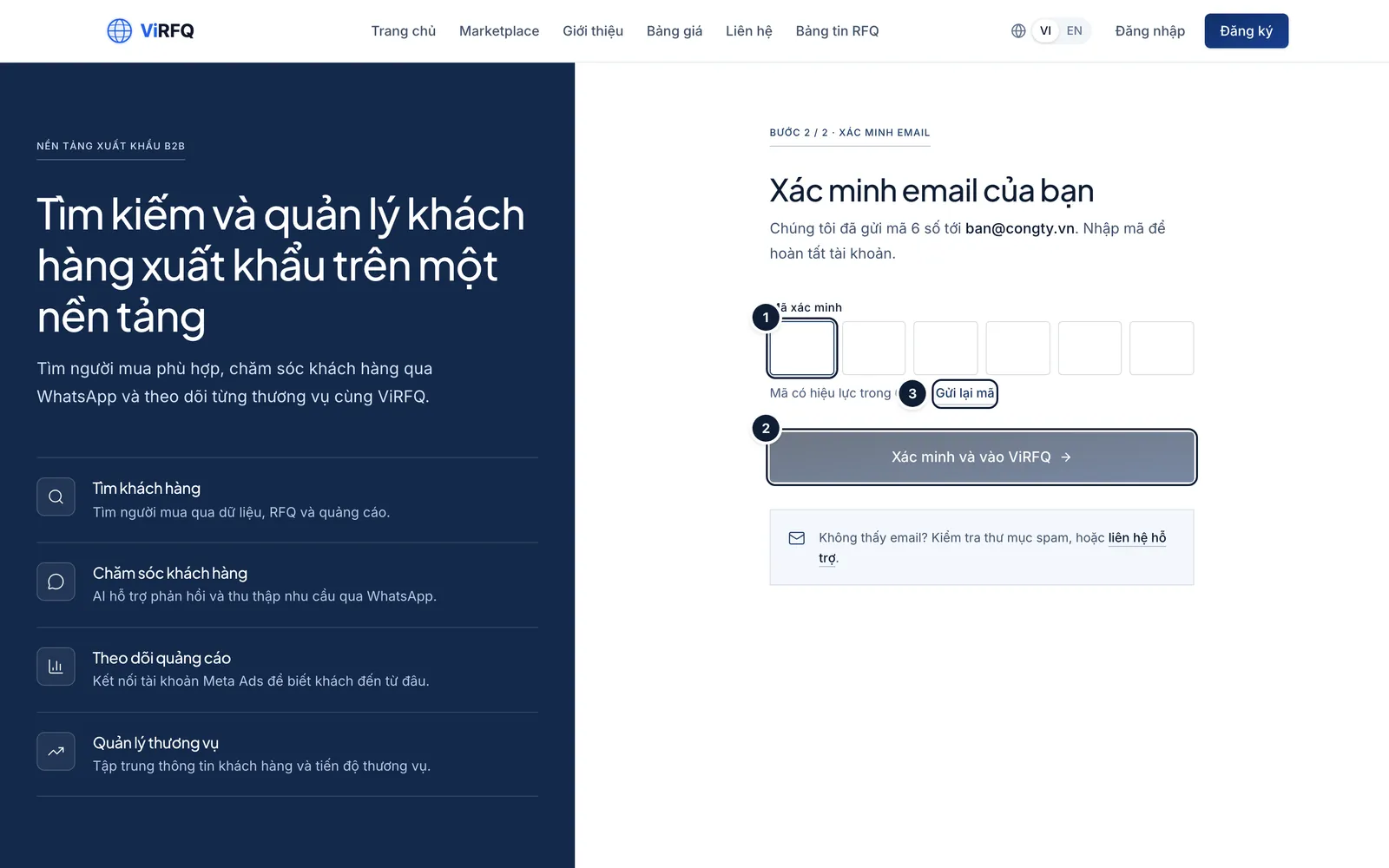
Email verification: (1) enter the 6-digit code, (2) verify, (3) resend the code if it has not arrived.
Step 3: First company details
Bước 1: After verification ViRFQ asks for a few details to build the company profile. Fastest way: paste your company website address (1) and click Auto-fill (2) — the AI assistant reads the website and pre-fills the name, product categories and introduction.
- No website? Type the company name (3), choose the business type (4: manufacturer, trader, cooperative or farm), tick the product categories you sell, then pick the founding year and staff size.
- Click Complete (5). You may click *Skip, fill in later* — but an empty profile does not appear on the Marketplace until it is completed (see "Business profile").
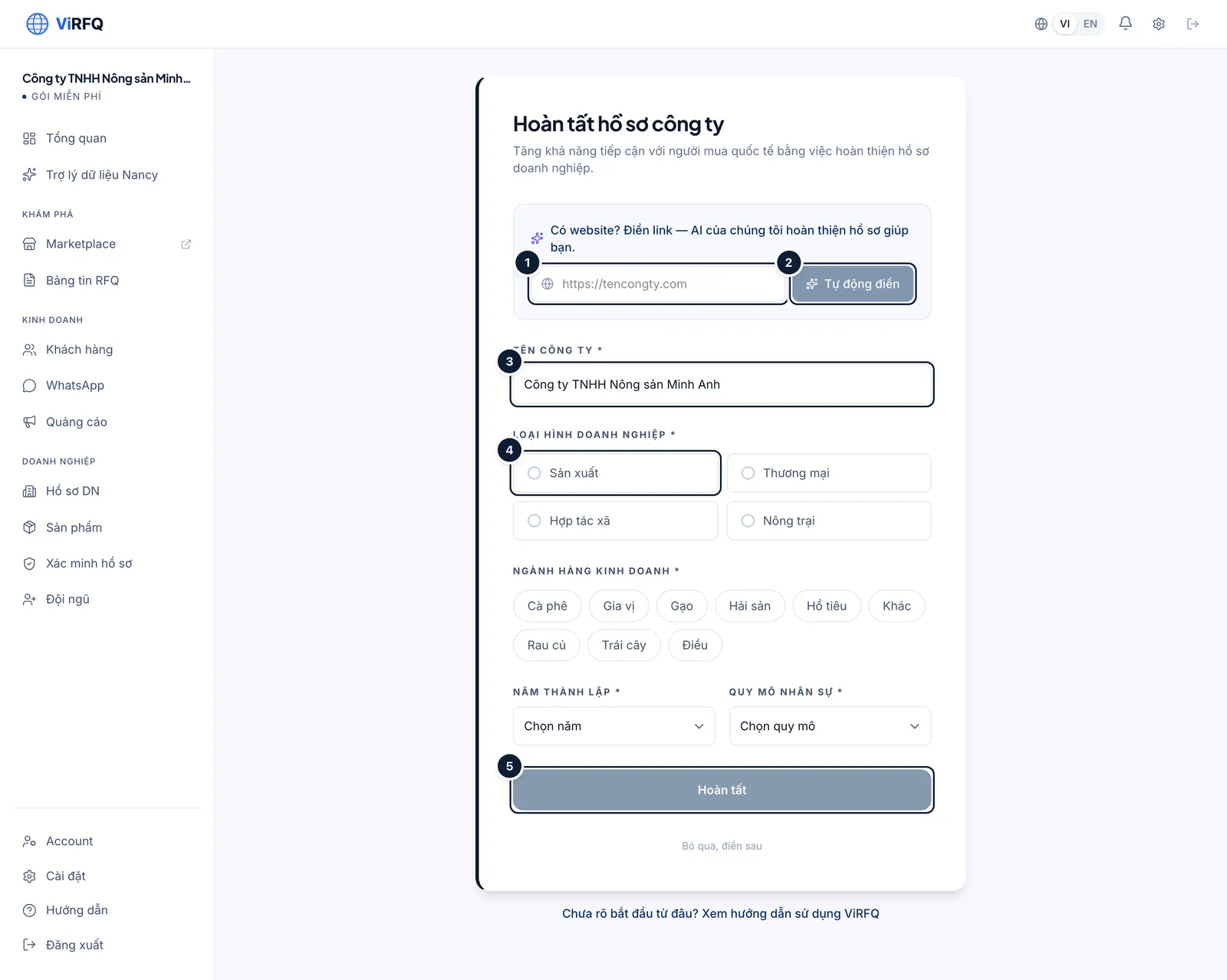
Company setup: (1) website, (2) auto-fill, (3) company name, (4) business type, (5) Complete.
Signing in next time
Bước 1: Open virfq.com/en/login. Enter your email (1) and password (2) and click Sign in (3).
- Tick Remember me on this device on your own computer: the session lasts 30 days. Without it, closing the browser signs you out.
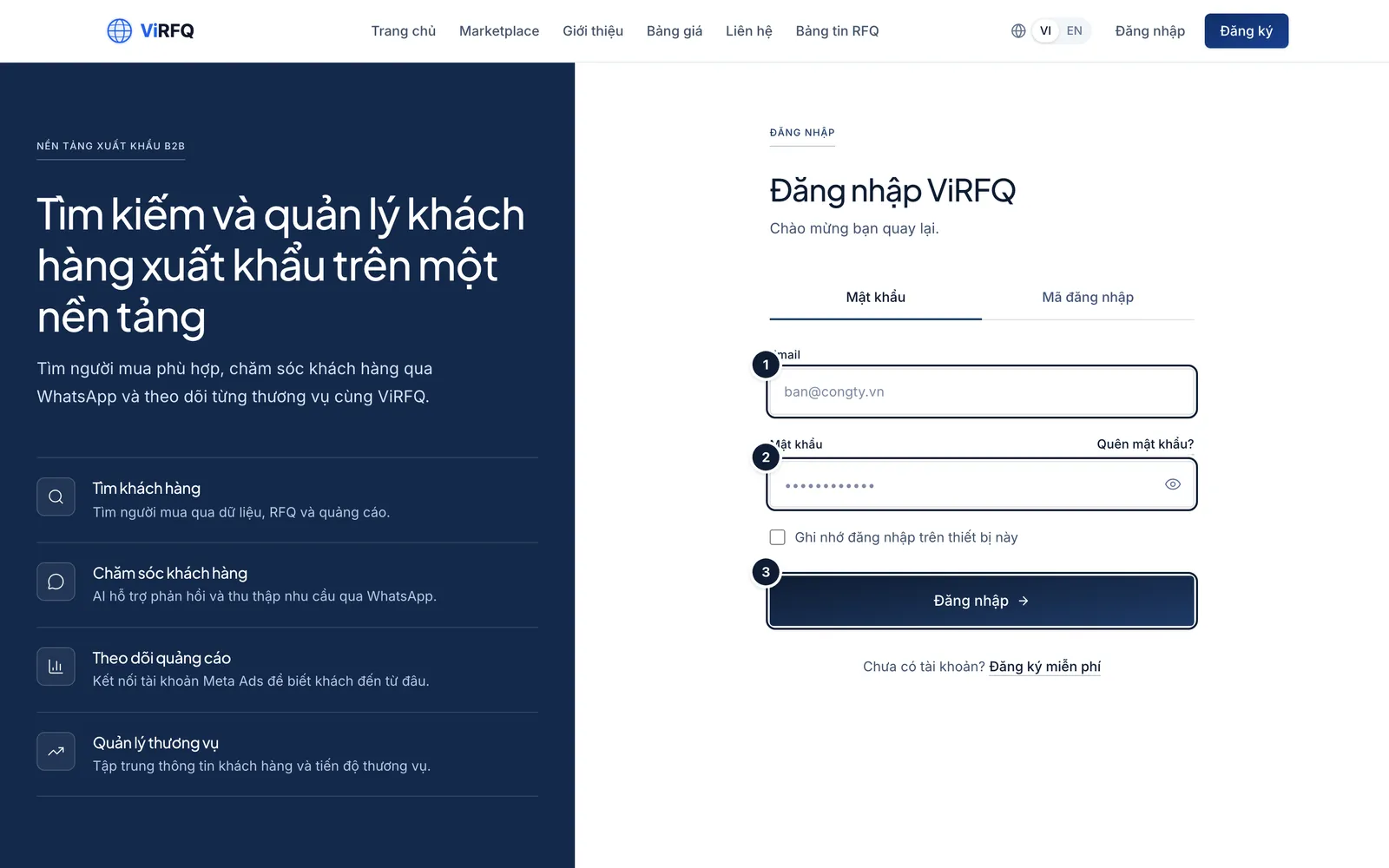
Sign in with a password: (1) email, (2) password, (3) Sign in. Bước 2: Forgot the password? Switch to the Email code tab (1), enter your email (2) and click Send login code (3). ViRFQ emails a 6-digit code; entering it takes you straight to the dashboard, no password needed.
- A login code is valid for 10 minutes and can be used once.
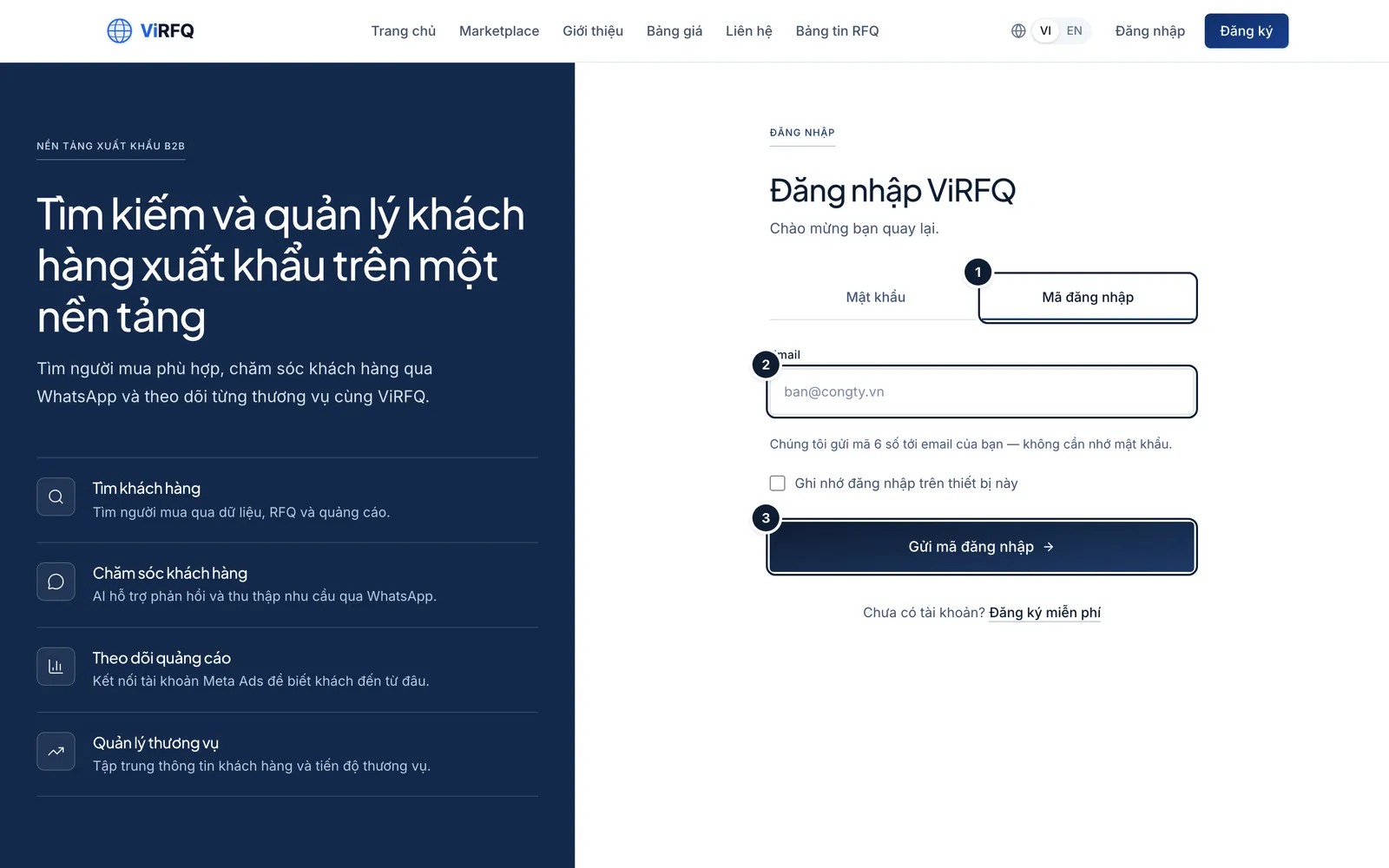
Sign in with an emailed code: (1) choose the tab, (2) email, (3) send the code. Bước 3: To set a new password click Forgot password?, enter your email (1) and click Send verification code (2). Enter the code together with the new password on the same page.
- After the password changes, every signed-in device is signed out — sign in again with the new password.
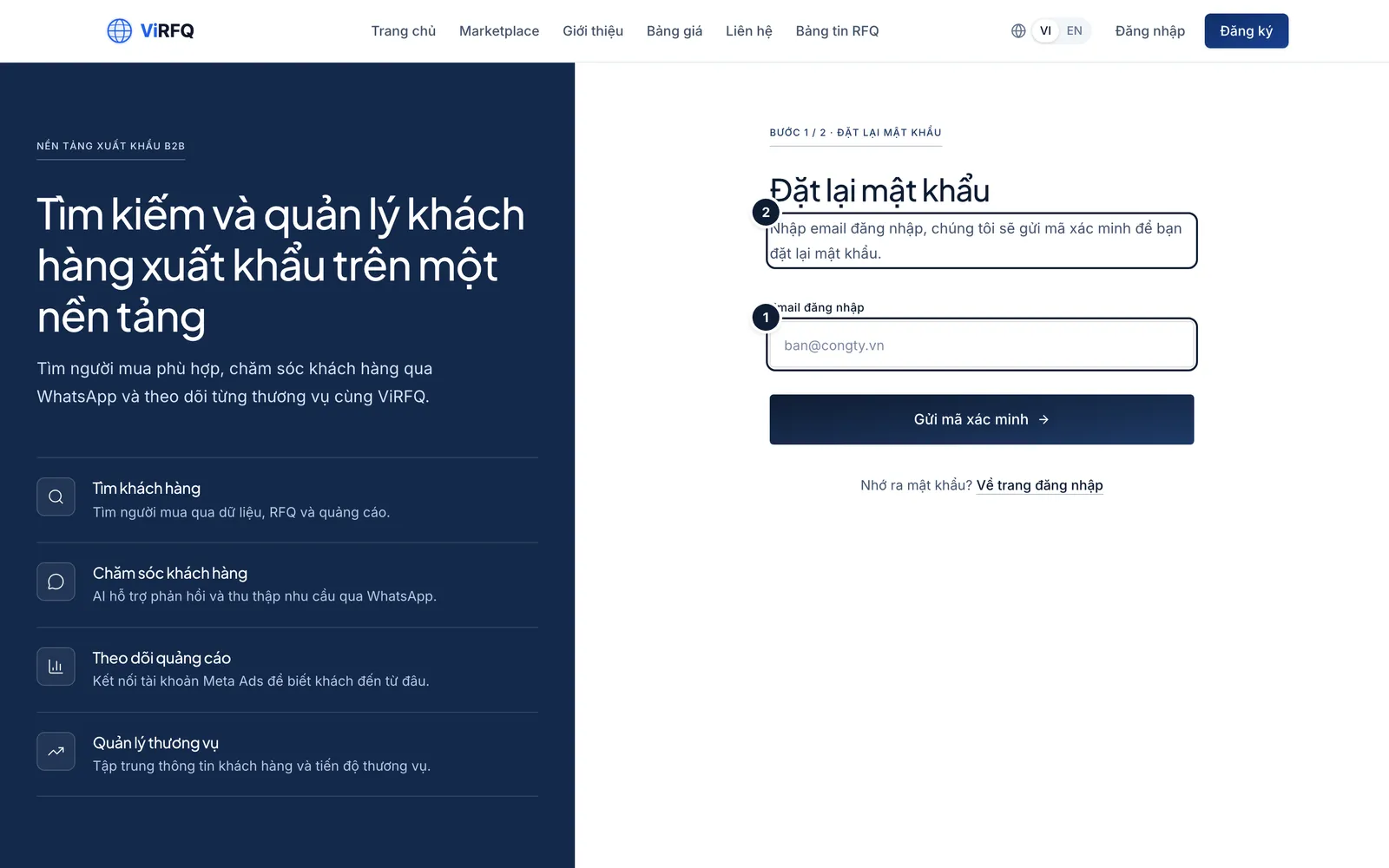
Reset the password: (1) email, (2) send the code. Bước 4: On a phone the login page collapses into one column; the steps are identical to the desktop.
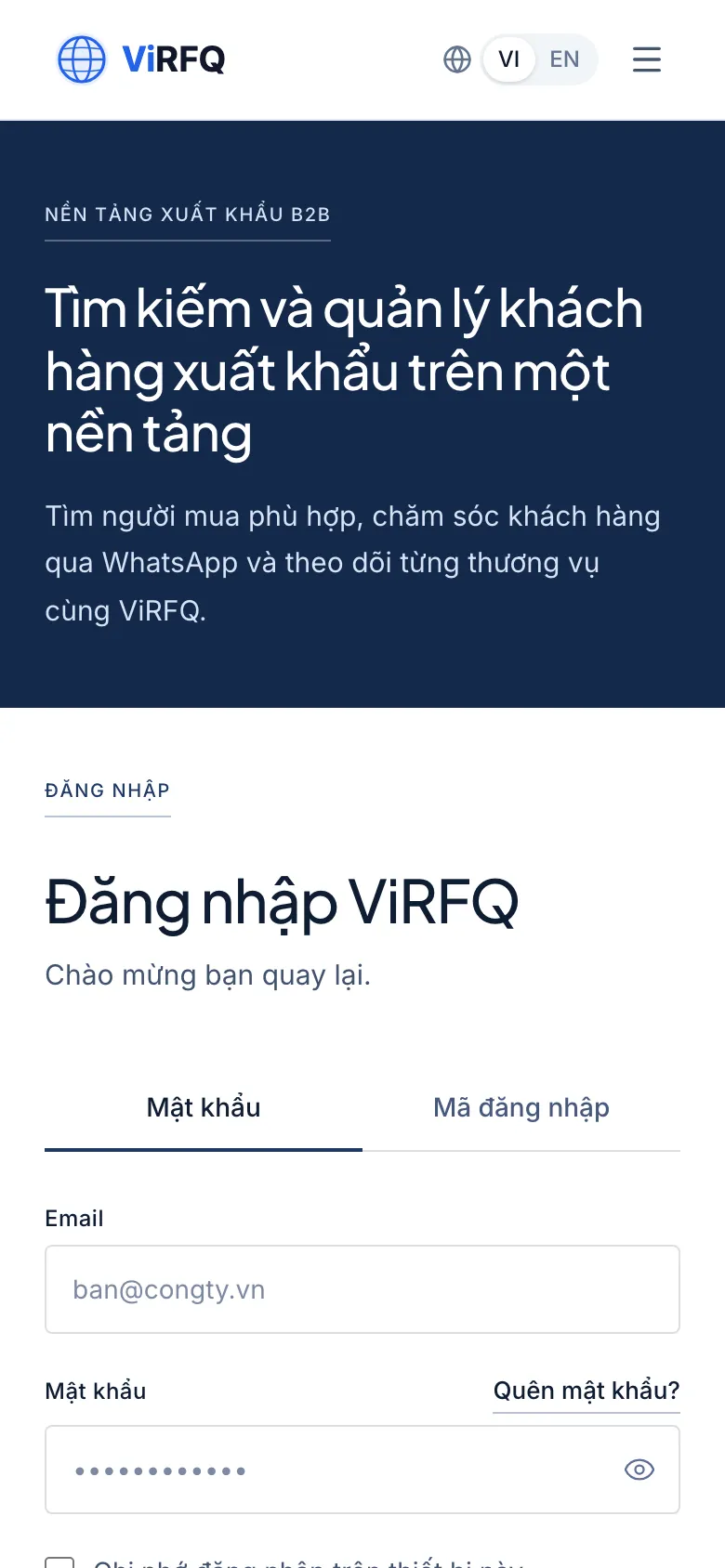
ViRFQ login page on a phone
Frequently asked questions
- Can I register with a personal email (Gmail)?
- Yes. A work email on the company domain, however, makes buyers trust you more when you contact them and helps ViRFQ verify the business faster.
- How many accounts can one company create?
- One owner account per company. Sales staff accounts are added under Team (Platform plan); they share the plan and company data but sign in separately.
- I already have an account but forgot which email I used.
- Contact ViRFQ support through the Contact page or the hotline in the footer, with the company name and tax code, and we will look it up.