Chapter 1 · The Overview dashboard
Reading the Overview dashboard
Understand the 5 key numbers, the customer funnel and the list of things that need your attention today, right after signing in.
Updated: 09/09/2026
Screenshots show the Vietnamese interface; the English interface has exactly the same layout — switch with the VI / EN toggle at the top right.
Overview is the first screen after signing in. It answers three questions: how long my plan has left, where buyers came from this week, and what I need to do right now. Every number is clickable and leads to its detail page.
The key numbers
Bước 1: Right under the greeting you see the current plan, expiry date and days left; click Manage (1) to see payment history or buy a new term.
- The Today / Yesterday / 7 days / 30 days / 90 days selector (2) applies to every number below.
- Reach and WhatsApp messages: how many people saw your ads and how many messages buyers sent to your WhatsApp number in the chosen period; the arrow shows the change versus the previous period.
- Cost per message: ad spend divided by messages received — the lower the better.
- RFQ unlocks (3): buyer-contact unlocks used out of this month’s allowance.
- Spent: total Meta ad spend in the period (shown only once you have connected an ad account).
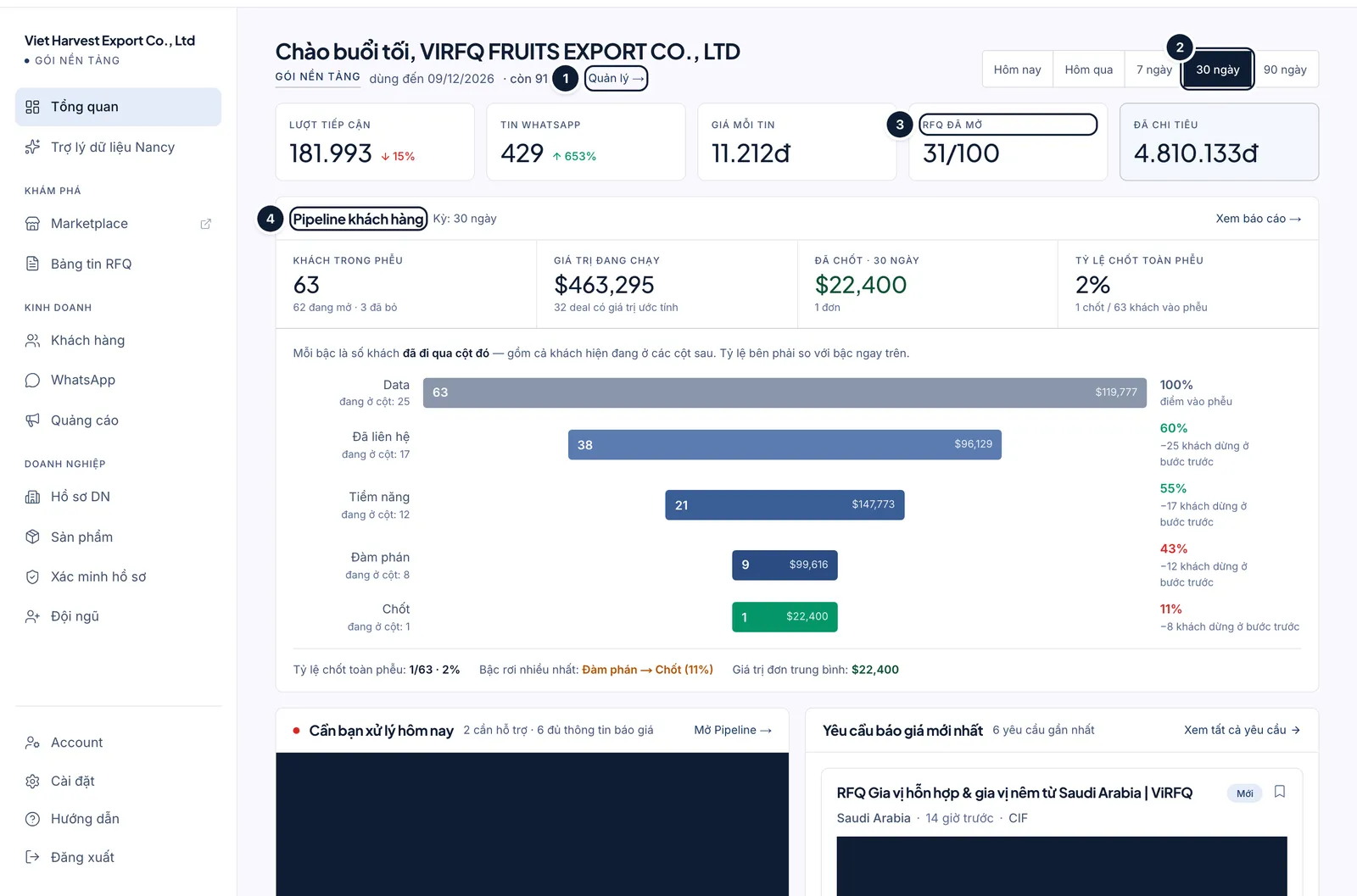
Overview: (1) manage the plan, (2) choose a period, (3) RFQ unlocks used, (4) customer funnel. Bước 2: The Customer pipeline block (4) summarises the sales funnel: how many customers are in it, the value of open deals, how many were won and the win rate. Each bar is the number of customers who passed through that column; the percentage on the right compares it with the bar above.
- Click View report to open the Customers board with the same period selected.
What needs your attention today
Bước 1: Scroll down. The Needs your action today block (1) lists WhatsApp conversations the auto-reply assistant cannot handle further: buyers who need support (clock icon) or who are quote-ready (tick icon) and are waiting for your quote. Click a row to open that conversation.
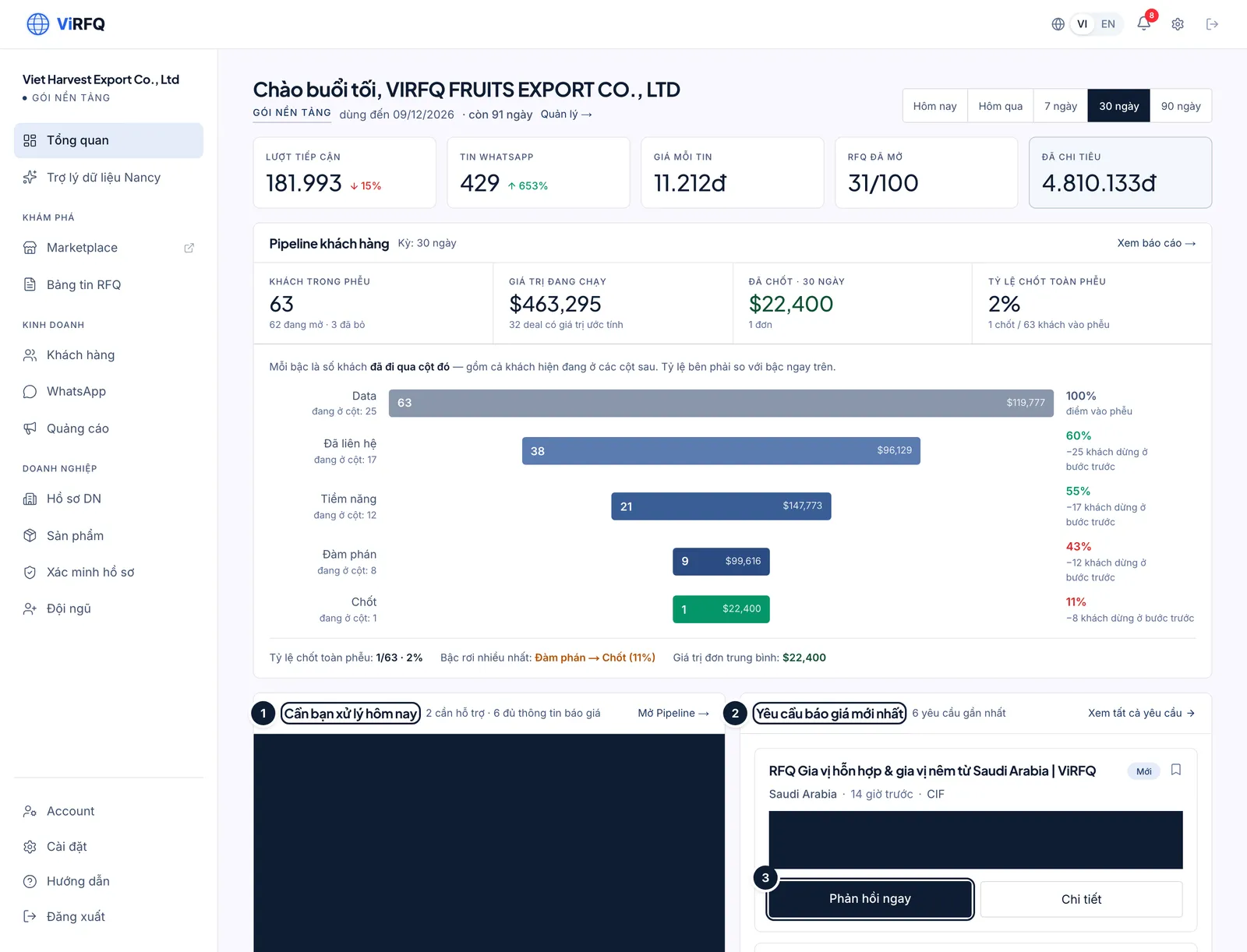
Today: (1) conversations waiting for you, (2) latest RFQs, (3) reply to an RFQ. Bước 2: The Latest RFQ Submissions block (2) shows new RFQs in your product categories. Click Reply Now (3) to unlock the contact details and reach the buyer, or Details to read the full request first.
Bước 3: On a phone the tiles stack vertically and the navigation bar sits under the logo; swipe sideways to reach the other sections.
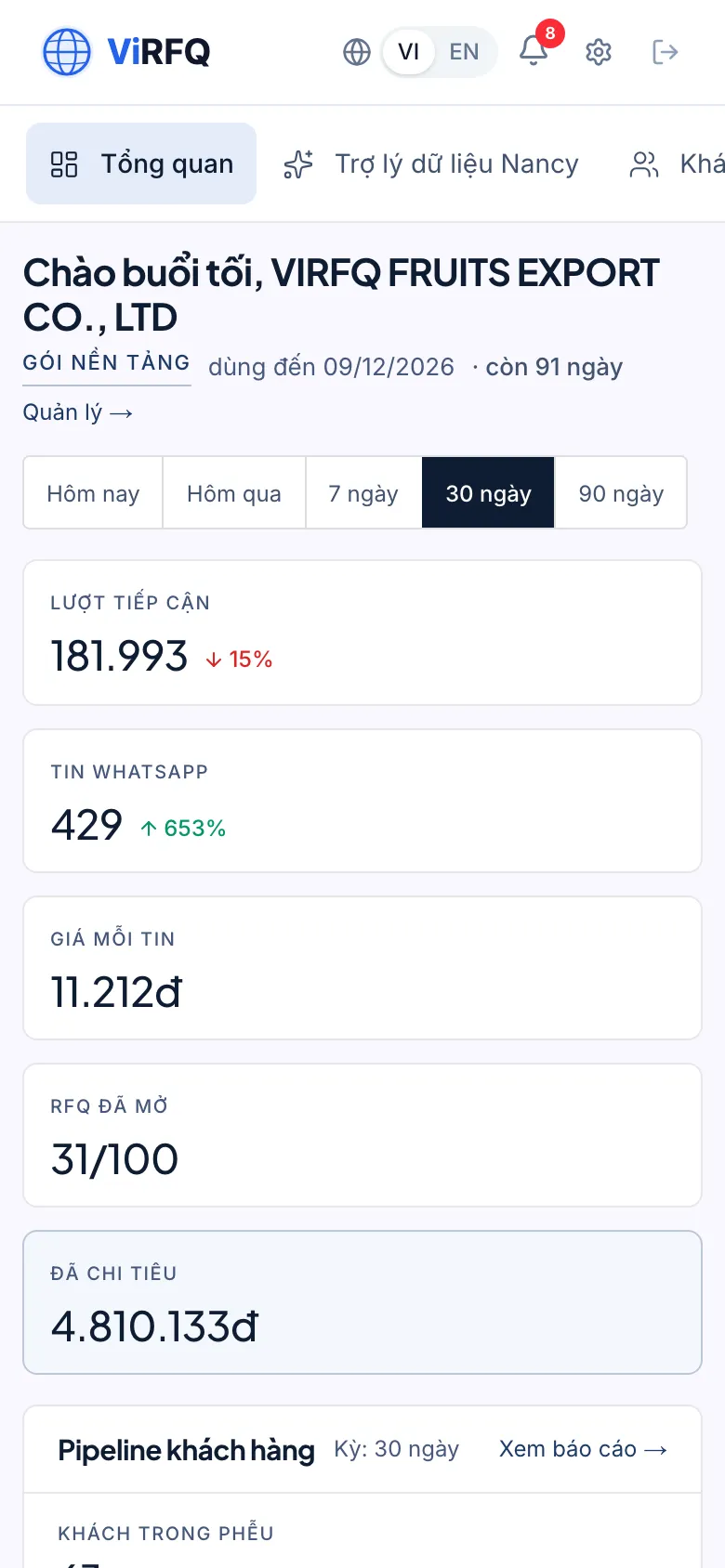
Overview dashboard on a phone with the metric tiles stacked
Frequently asked questions
- How often do the numbers refresh?
- WhatsApp messages and RFQs update immediately. Meta ad figures sync on a schedule; click "Sync again" under Ads to fetch the latest numbers.
- I am a sales staff member — why do I see fewer sections than the owner?
- Staff accounts only see the customer-facing sections (Overview, Nancy, RFQ Board, Customers, WhatsApp). Money, company profile and product sections are visible to the owner account only.