Chapter 11 · Account, plan and team
Buying the Platform plan, payment, invoices, security and staff accounts
Choose a Platform plan term, pay by bank transfer or card, get invoices, change your password and create accounts for sales staff.
Updated: 09/09/2026
Screenshots show the Vietnamese interface; the English interface has exactly the same layout — switch with the VI / EN toggle at the top right.
Only the owner account can do this; staff accounts do not see this section.
ViRFQ sells a single plan — the Platform plan — in three terms. It opens every tool: 100 RFQ contact unlocks per month, the Nancy data assistant, profile and product pages, the WhatsApp assistant that answers buyers, Meta ads tracking, the customer pipeline and 4-hour early access to new RFQs. Prices include VAT; there is no commission on orders.
Choose a term
| Term | Price per month | Total (VAT included) | Bonus | Valid for |
|---|---|---|---|---|
| 3-month term | 5,000,000 VND | 15,000,000 VND | — | 3 months |
| 6-month term | 3,900,000 VND | 23,400,000 VND | +2 months free | 8 months |
| 12-month term | 3,500,000 VND | 42,000,000 VND | +4 months free | 16 months |
Bước 1: Open virfq.com/en/pricing. Click a term card (1) to see the price and the bonus months (2). Click Buy the 6-month term (3) — or the term you chose — to go to checkout. If you are not signed in, the system takes you through sign-in and back to the same plan.
- The plan does not renew itself and never charges automatically. Buying a new term while the plan is still active extends the current expiry date.
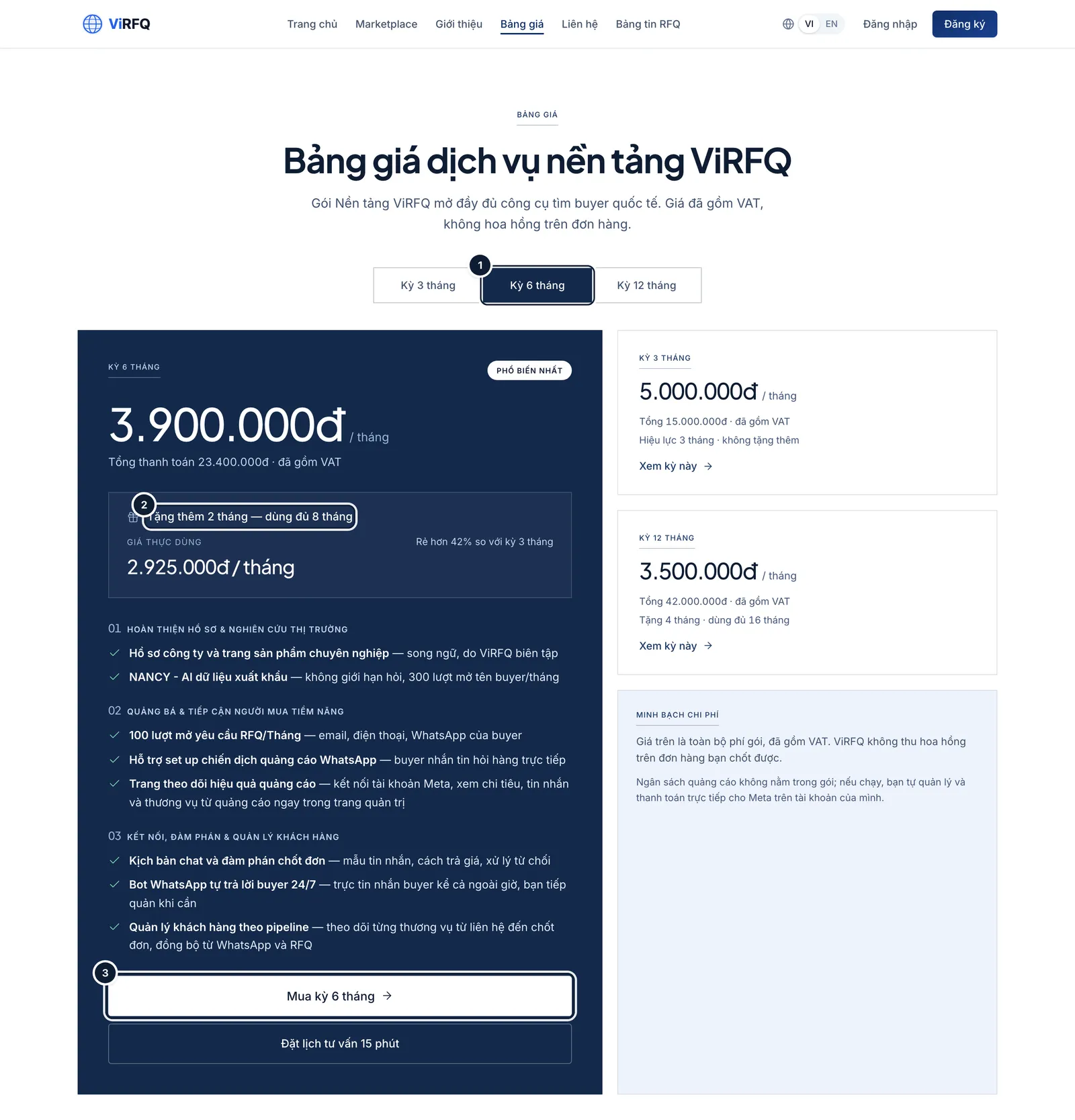
Pricing: (1) choose a term, (2) bonus months, (3) buy.
Payment
Bước 1: The checkout page repeats the chosen term (1) and the total including VAT (2). Choose how to pay: Bank transfer (3) for companies in Vietnam, or International card (4).
- Bank transfer: scan the VietQR code with your banking app or transfer manually to the account shown on screen. Keep the transfer description unchanged — it is the code the system uses to recognise you. Once the money arrives the plan activates automatically, usually within minutes.
- International card: paid through Stripe; the plan activates as soon as the card is accepted.
- Need help during payment? Click Contact support right on the page.
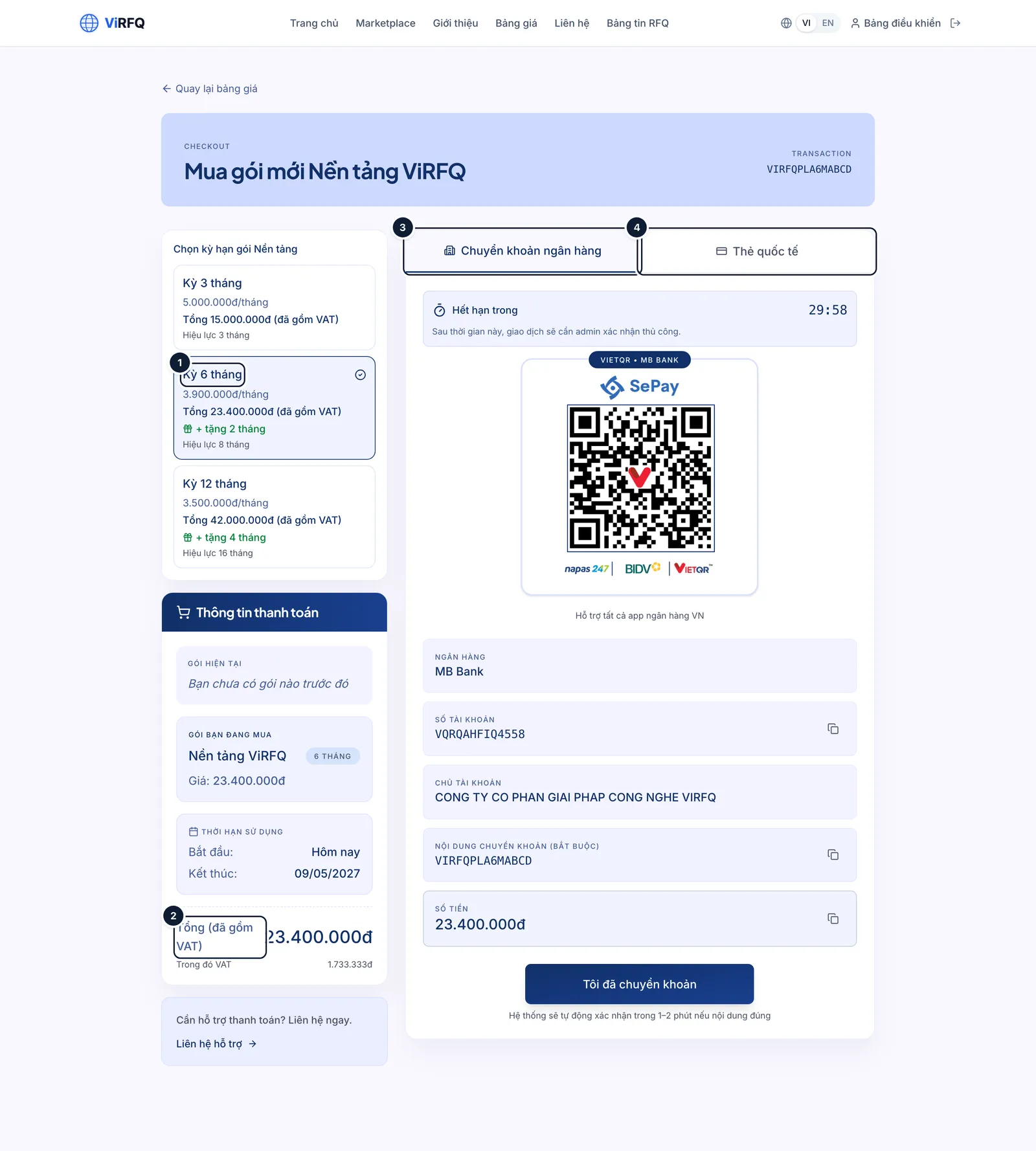
Checkout: (1) term, (2) total, (3) bank transfer, (4) international card.
Your plan, payment history and invoices
Bước 1: Open Account in the left column, then the Payment tab (1). The Current plan block (2) shows the plan and expiry date; Upgrade (3) takes you back to pricing to buy a new term. Below is the Payment history (4) with the transaction code and status of every payment.
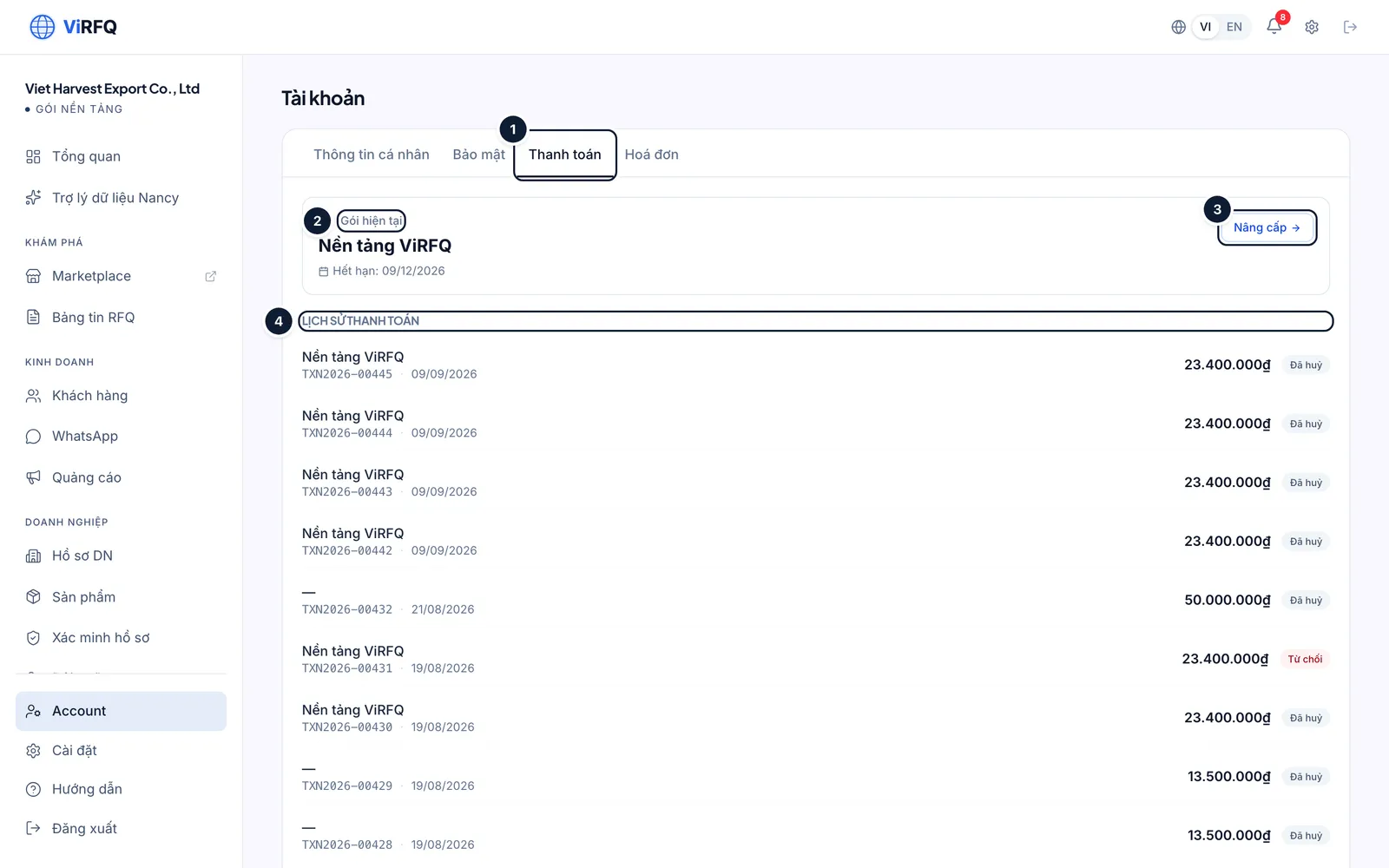
Account › Payment: (1) tab, (2) current plan, (3) upgrade, (4) history. Bước 2: To receive e-invoices, open the Invoice tab (1), fill in the legal company name (2), tax code (3), billing address and accounting email, then click Save invoice details (4). Invoices for later payments are issued with these details.
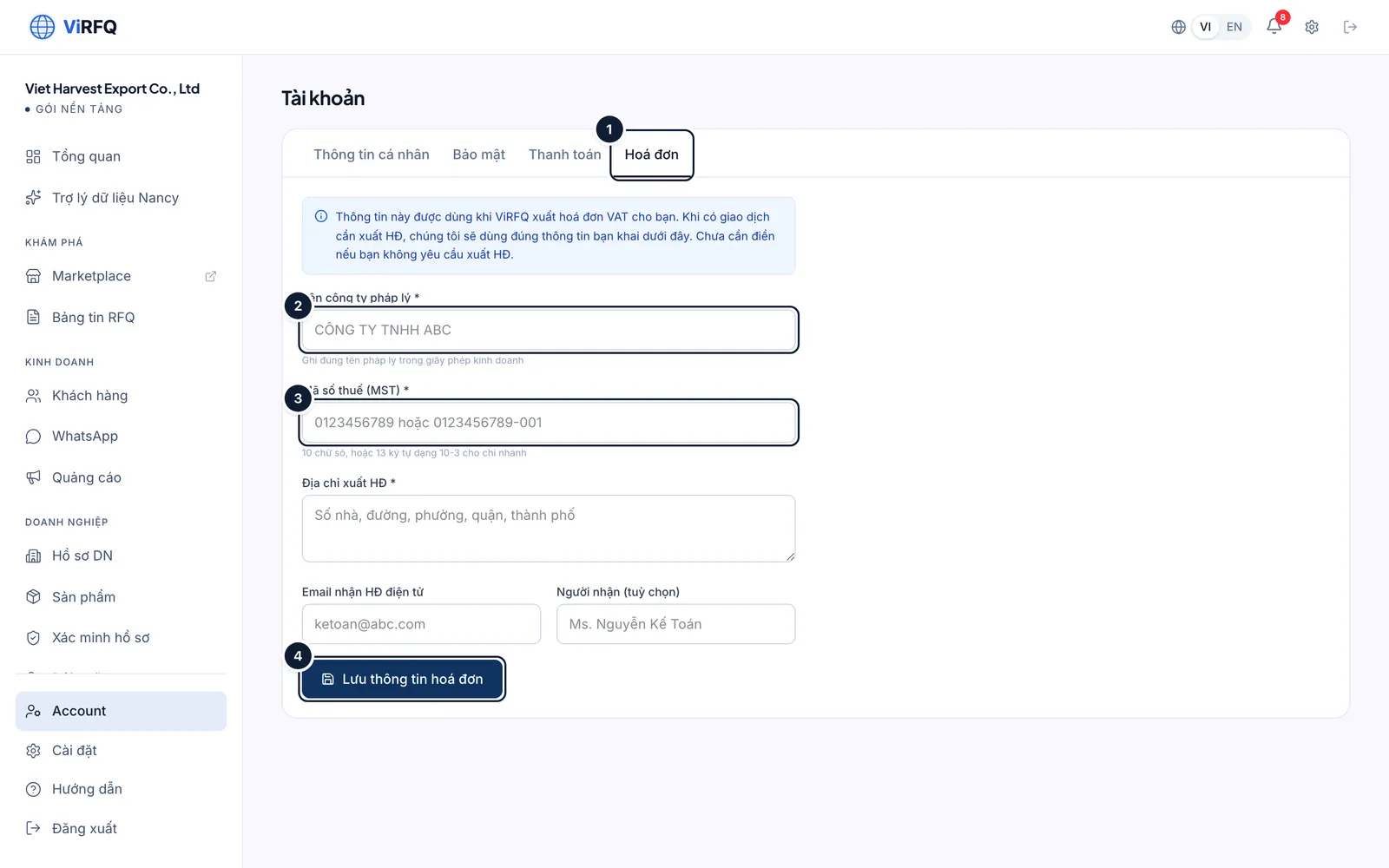
Account › Invoice: (1) tab, (2) legal name, (3) tax code, (4) save.
Personal details and security
Bước 1: Personal info tab (1): edit the contact name (2), company name, phone, WhatsApp and country, then click Save (3). The login email cannot be changed — contact support if needed.
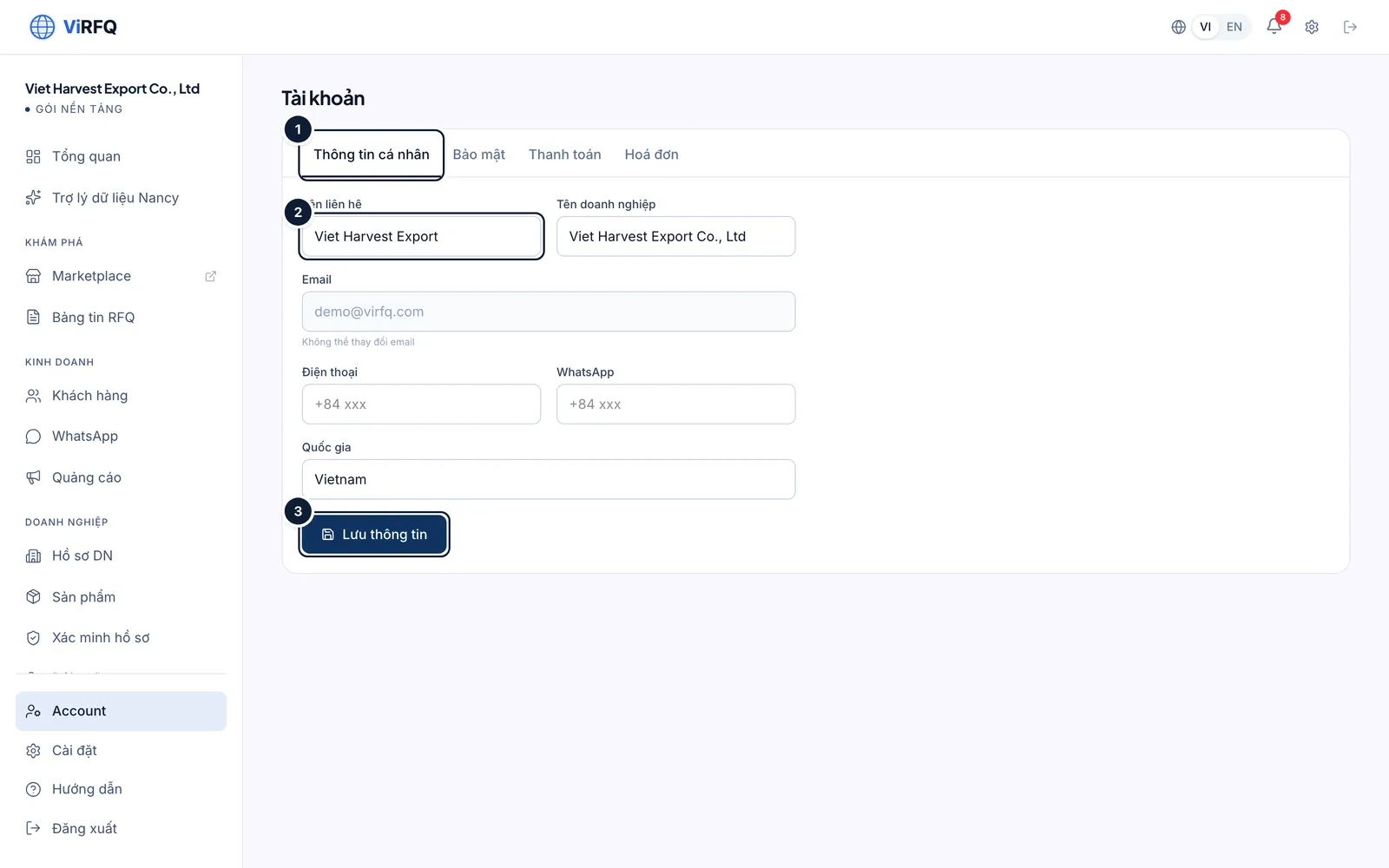
Account › Personal info: (1) tab, (2) contact name, (3) save. Bước 2: Security tab (1): enter the current password, the new password twice (2) and click Change password (3). Every other device is signed out.
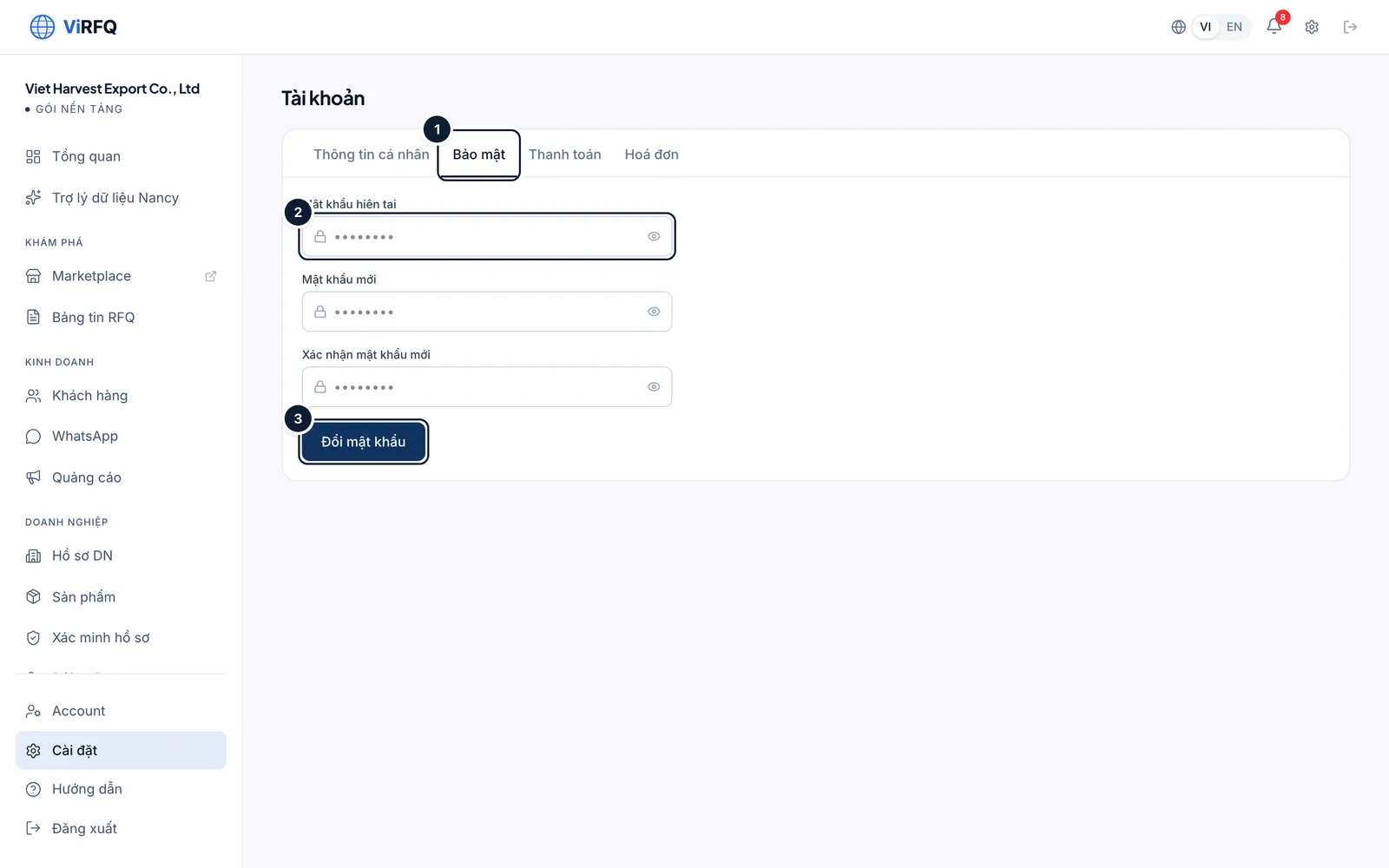
Account › Security: (1) tab, (2) passwords, (3) change.
Staff accounts (Team)
The Platform plan includes 3 seats including the owner — so you can create 2 more accounts for sales staff. Staff sign in with their own email and share the plan and company data, but see only the customer-facing sections: Overview, Nancy, RFQ Board, Customers and the WhatsApp Inbox. Money, company profile, products and assistant settings are visible to the owner only.
Bước 1: Open Team in the left column. Click Add staff (1). The Automatic lead routing block (2) decides who new buyers are assigned to: the default salesperson of the WhatsApp number, round-robin, or nobody so the owner assigns by hand.
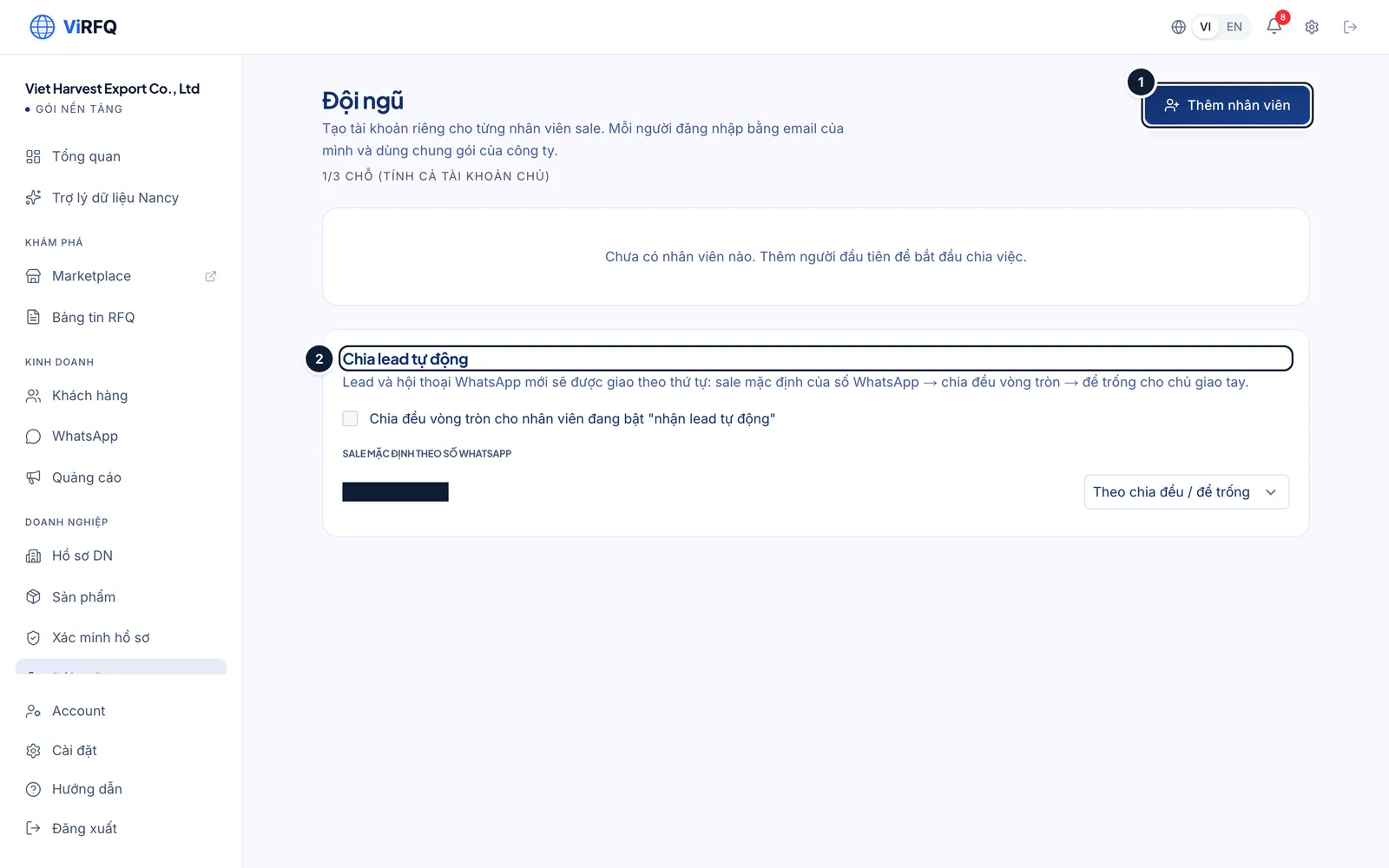
Team: (1) add staff, (2) automatic lead routing. Bước 2: Enter the staff member’s full name (1) and login email (2). Leave the temporary password empty to let the system generate one. Click Create account (3) — the temporary password is shown once only; copy it and send it to the staff member privately.
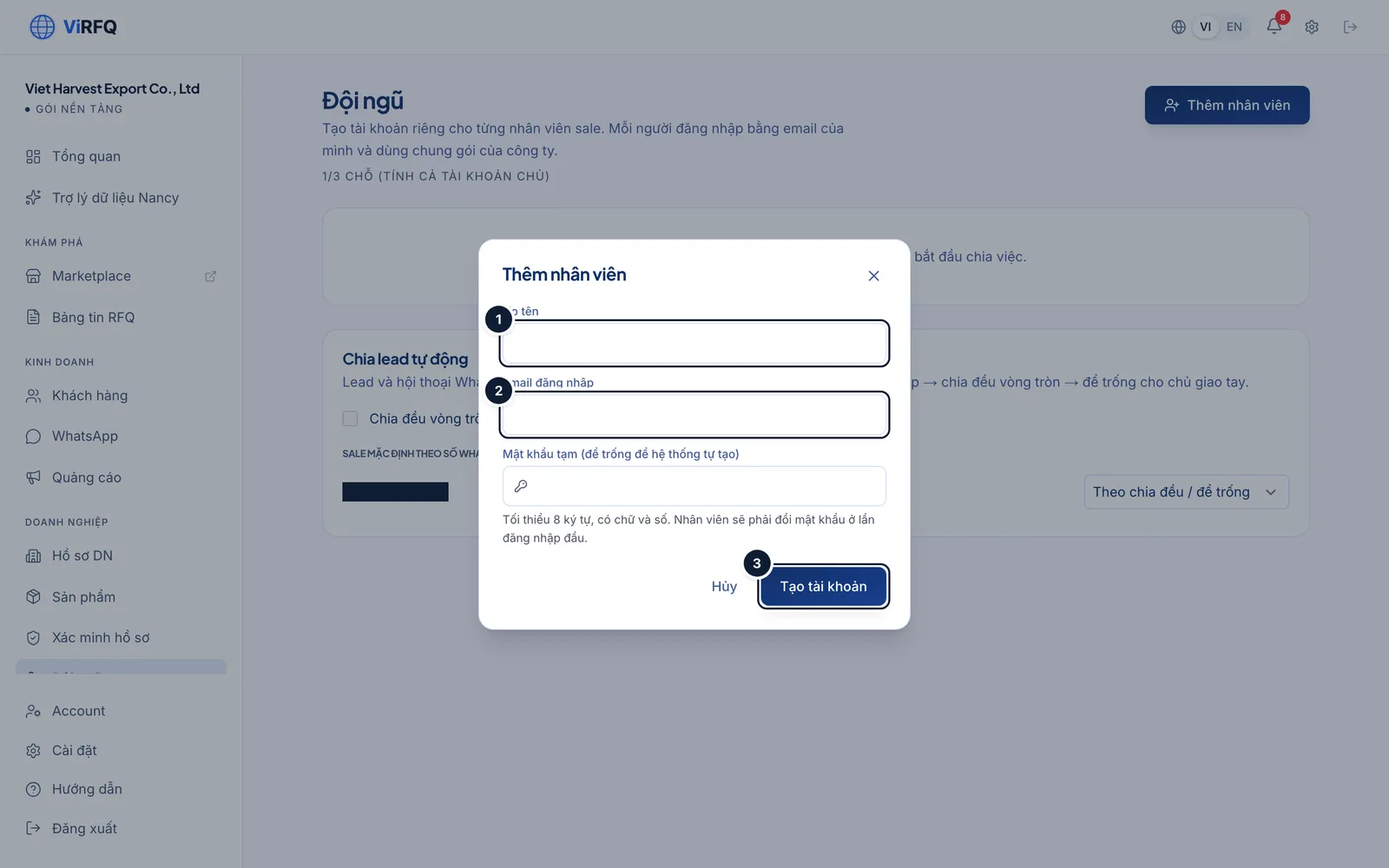
Add staff: (1) full name, (2) email, (3) create the account. Bước 3: On first sign-in the staff member must change the temporary password: enter the temporary and the new password (1) and click Change password (2). Only then does the dashboard open.
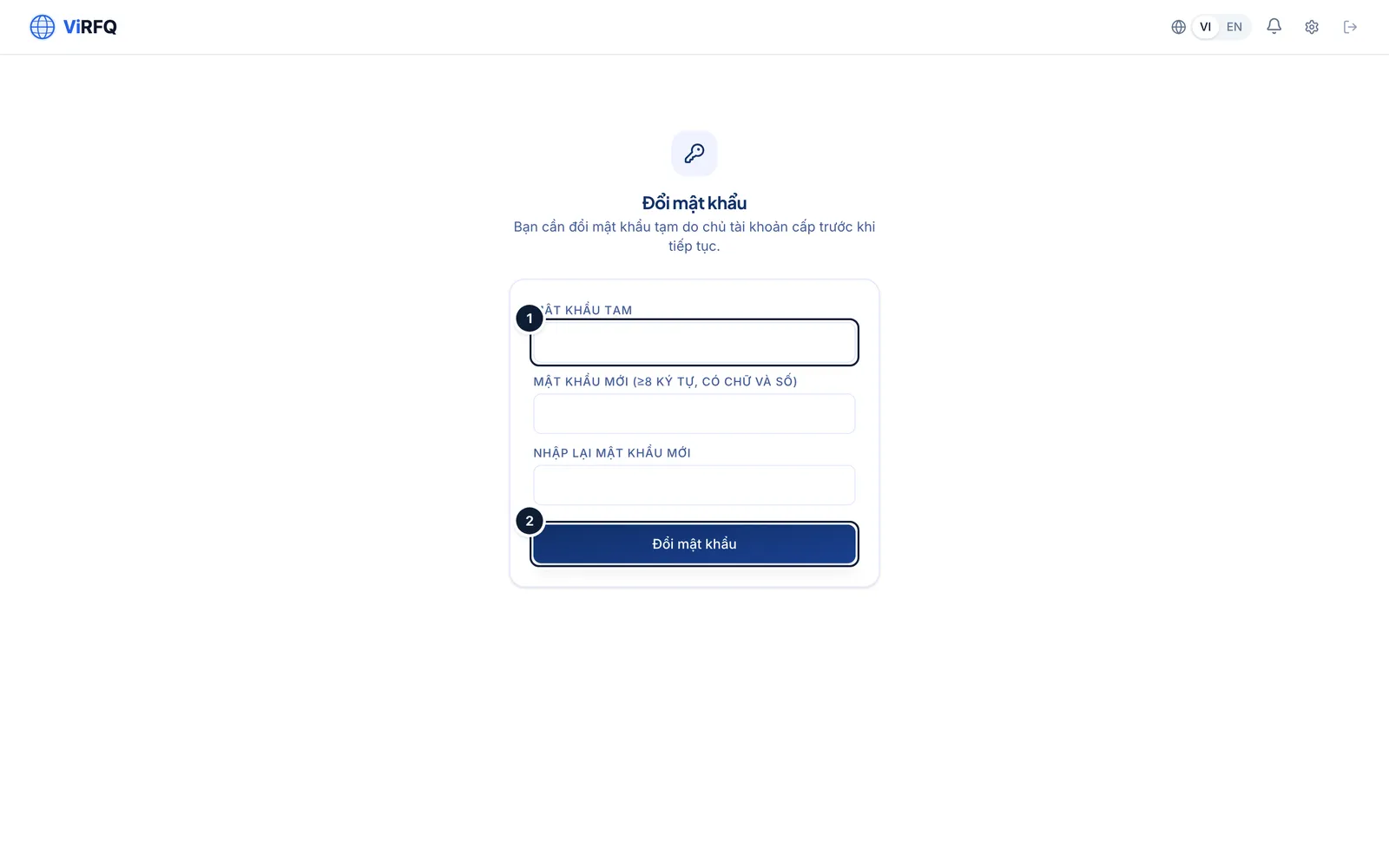
Staff first sign-in: (1) temporary and new password, (2) change. Bước 4: Staff then see a reduced dashboard: the sidebar (1) only has the customer-facing sections. The owner can deactivate a staff member at any time on the Team page; that person’s customers and conversations are handed to someone else or back to the owner.
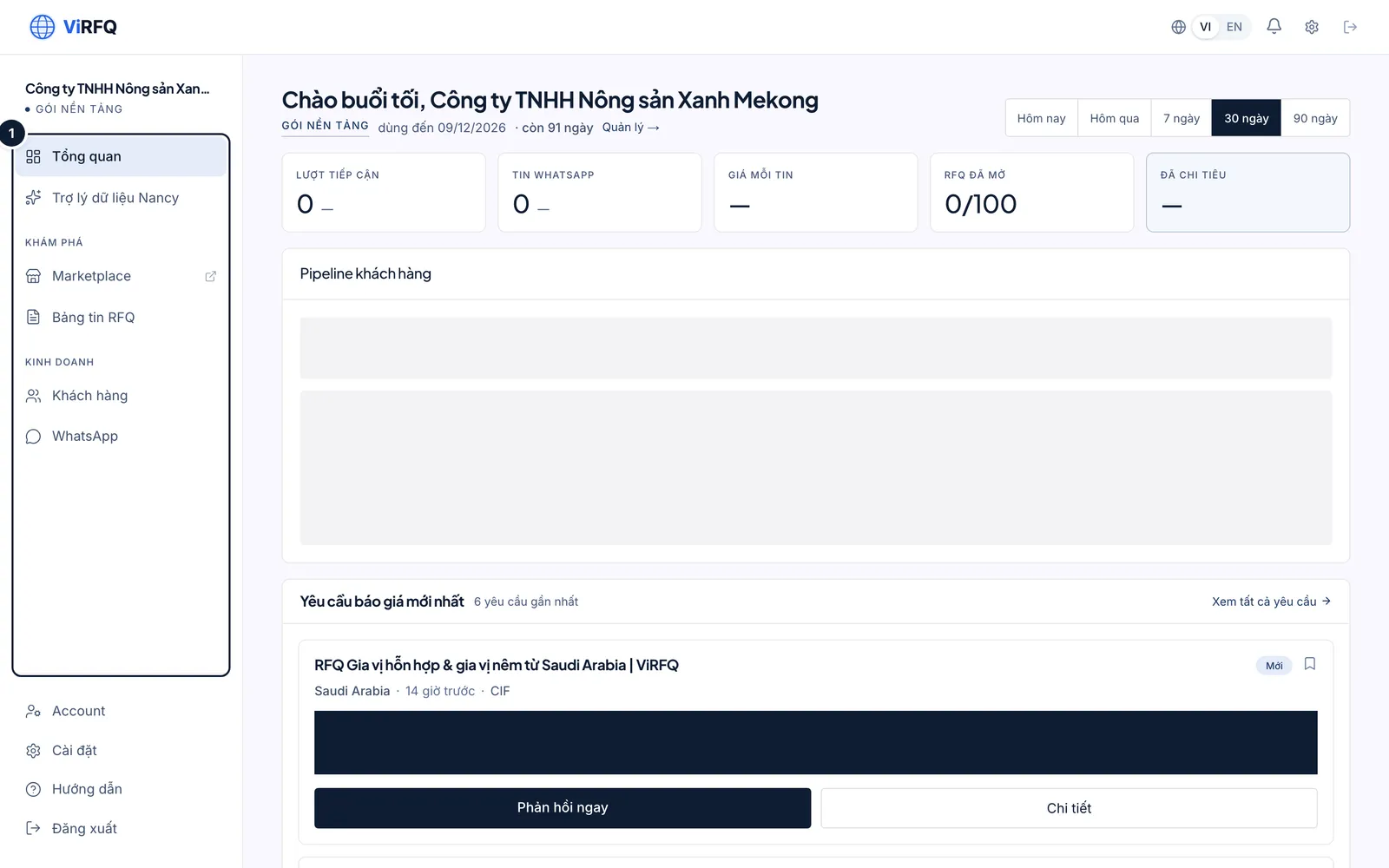
A sales staff view: the sidebar (1) has no money or profile sections.
Frequently asked questions
- I transferred the money but the plan is not active yet.
- Normally the plan activates within minutes of the money arriving. After 30 minutes, check that the transfer description carried the right code, then send the payment proof to ViRFQ support for manual activation.
- What do I lose when the plan expires?
- Remaining RFQ unlocks, the Nancy allowance and the WhatsApp auto-reply pause. Profile, products, conversations and customers stay intact; buying a new term brings everything back at once.
- Is there a refund?
- See the Payment and refund policy in the footer. To discuss, contact support within 7 days of activation.